
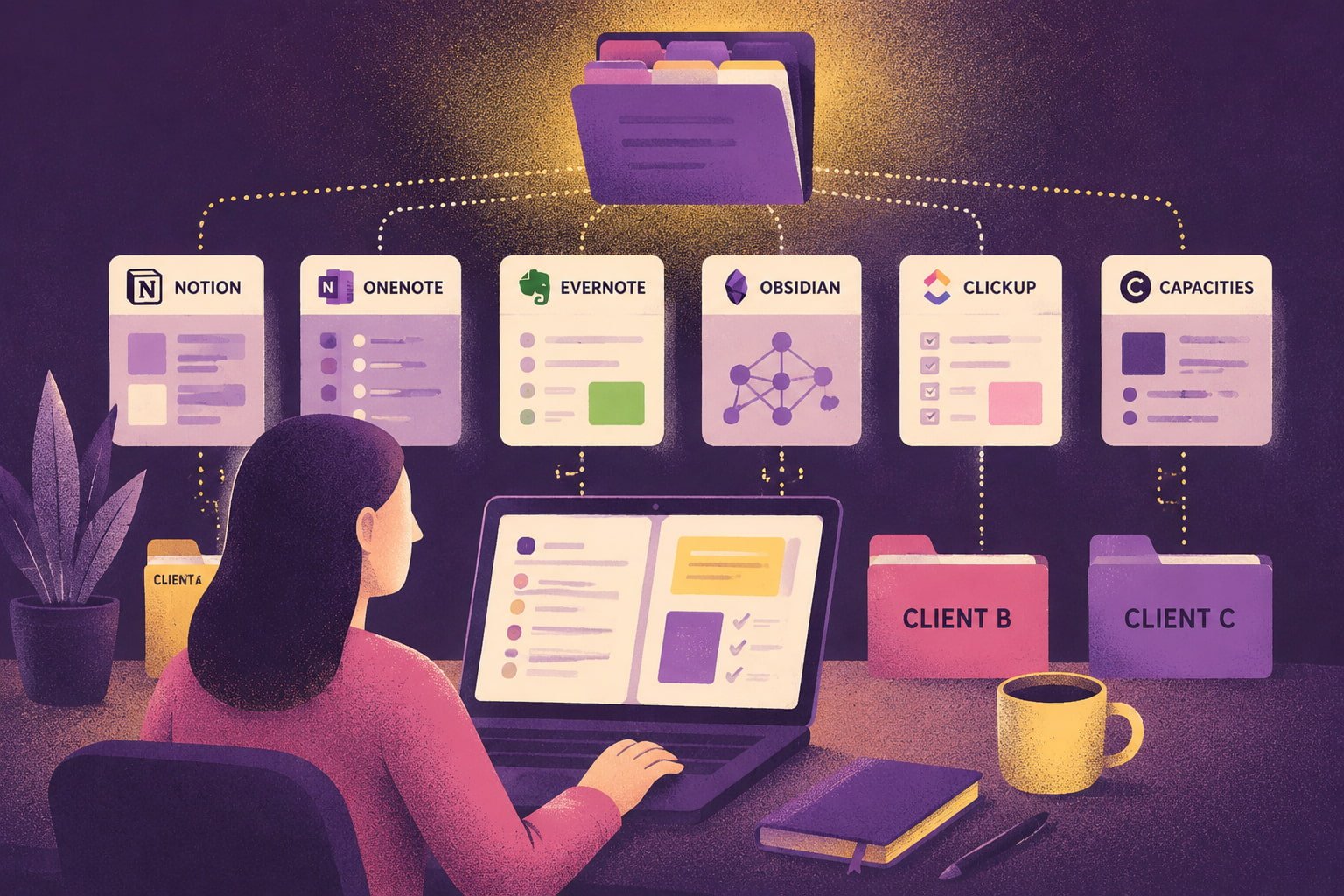
Client notes rarely become a problem when you write them.
The problem usually appears three months later.
A client asks why you rejected a pricing option. You remember discussing it. You even remember taking notes.
But where?
Was it in Client A’s kickoff call? Client B’s research document? Or a quick note you typed between two meetings?
That is the real test behind this list of the best note-taking apps for client projects.
A useful client notes app needs to do more than give you a clean place to type. It should help you:
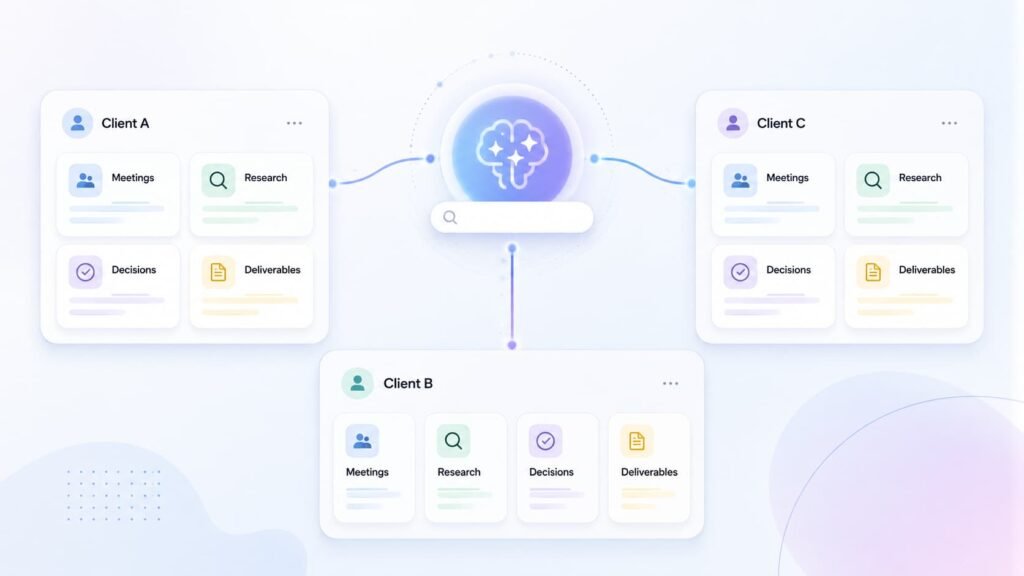
This guide compares seven tools using current product documentation and one specific use case: managing notes and knowledge across multiple client projects.
Some are better for structured project work.
Others make more sense for local knowledge, research-heavy workflows, or solo consulting.
Let’s compare them.
The Best Apps at a Glance
| App | Best fit | How it separates client work | Collaboration | Offline | Entry price |
|---|---|---|---|---|---|
| Brainfo | Mixed notes, docs, bookmarks, and research | Folders, tags, spaces | Real-time editing and team spaces | Notes, docs, bookmarks, and tags | Free; Pro $10/user/month billed yearly |
| Notion | Structured client workspaces | Pages, databases, properties | Strong team collaboration | Selected pages in desktop/mobile apps | Free; Plus $10/member/month |
| OneNote | Microsoft-centered work | Notebooks, sections, pages | Shared notebooks | Yes, depending on app and storage setup | Core app is free |
| Obsidian | Local, linked knowledge | Vaults, folders, properties, links | Shared vaults through Obsidian Sync | Strong local-first model | Core app free; Sync from $4/user/month billed yearly |
| Evernote | Fast capture and conventional notebooks | Notebooks, tags, spaces | Sharing available | Offline notes available | Free; paid Starter tier available |
| ClickUp Docs | Notes tied to tasks and delivery | Spaces, folders, Docs, tasks | Strong | Not the main reason to choose it | Free; Unlimited $7/user/month billed yearly |
| Capacities | Solo consultants building connected knowledge | Spaces, object types, tags, links | View-only sharing, no collaborative editing | Offline note access | Free; paid Pro tier available |
Prices and plan limits change.
The figures above were checked against official product pages on August 22, 2026. Check them again before publishing or buying.
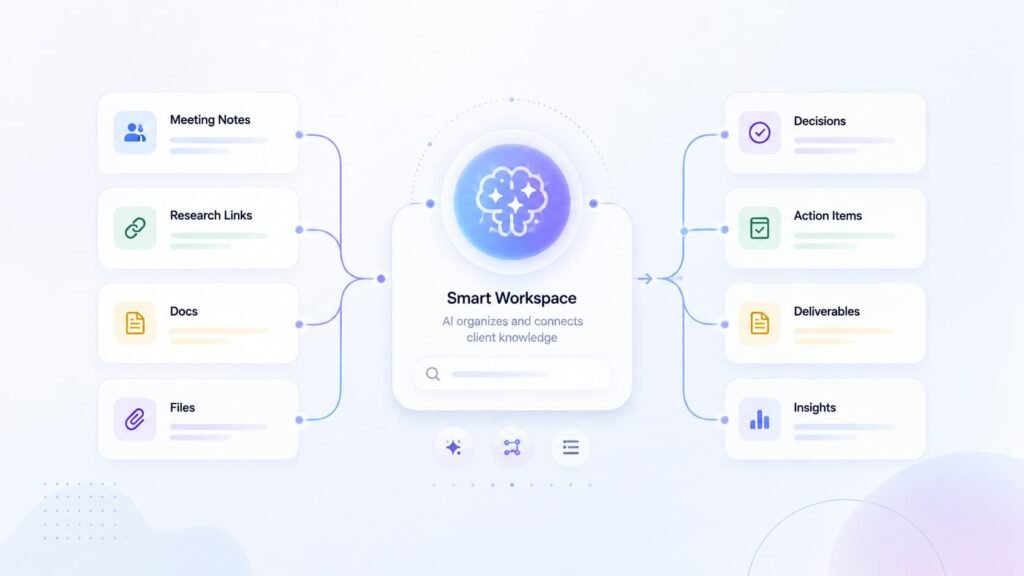
What Actually Matters When You Manage Notes for Several Clients?
A note-taking app can look perfect on a feature page.
Then you add six active clients.
Suddenly, the polished interface matters much less than one simple question:
Can you still find what you need when the workspace gets busy?
For this comparison, five things matter more than raw feature count.
1. Give Every Client an Obvious Home
Client A, Client B, and Client C should not stay separated because you remember where everything is.
Your system should do that work for you.
A useful setup gives each client an obvious container. Depending on the app, that might be:
The name of the container matters less than the habit behind it.
When you capture something quickly between meetings, you should immediately know where it belongs.
2. Find Decisions After You Forget Where You Wrote Them
Imagine a client asks:
“Why did we reject the annual pricing option?”
You remember discussing it sometime in June.
You do not remember the meeting title.
This is where search starts to matter more than a beautiful editor.
A good client notes system should help you recover that decision without opening twelve different pages and scanning every meeting transcript manually.
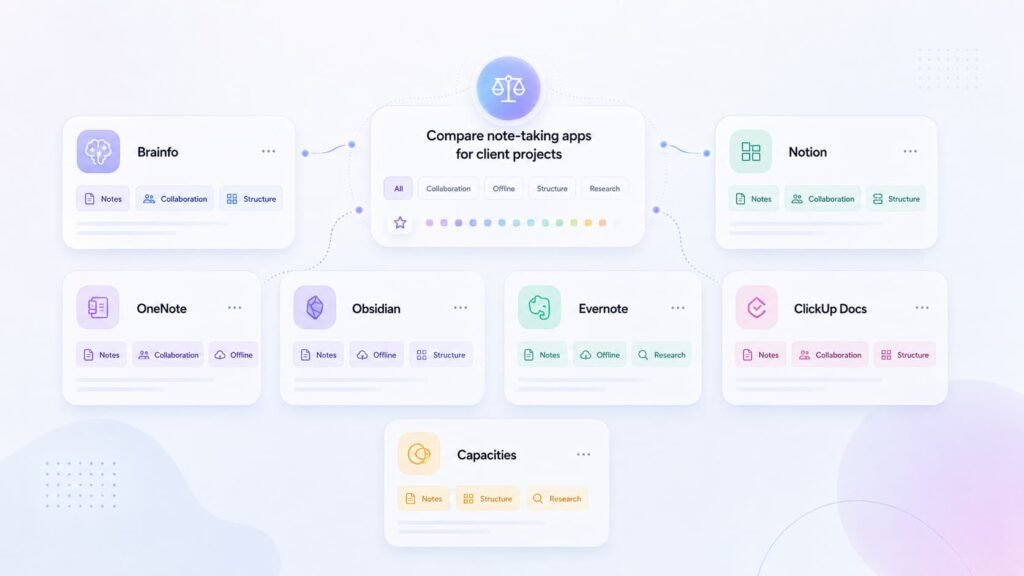
3. Keep More Than Meeting Notes
Client work rarely produces only notes.
Over time, you collect:
A tool that only handles quick notes can still work if the rest of your workflow is already stable.
But if your real problem is scattered context, moving every other piece of information into another app may simply move the problem around.
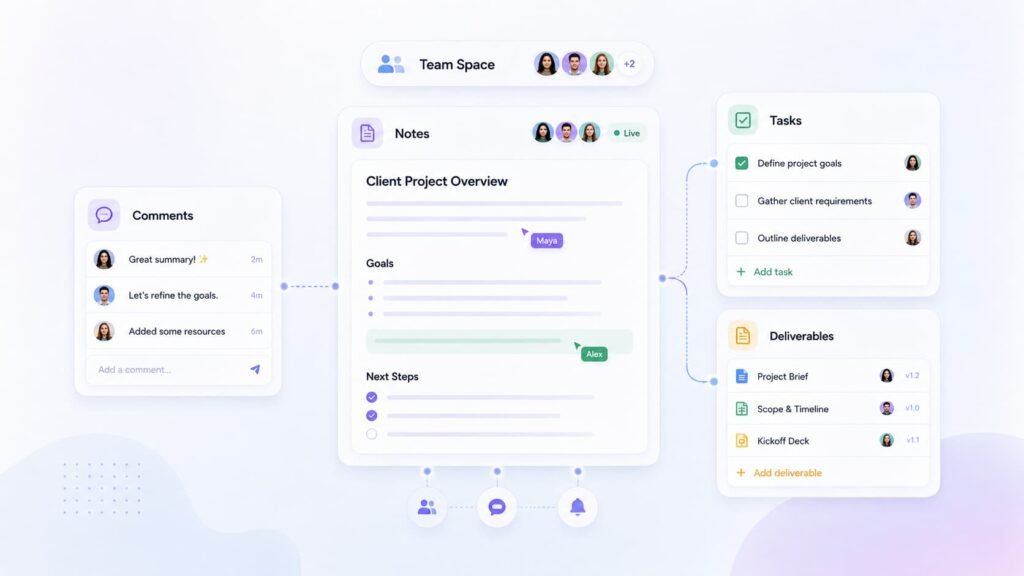
4. Match Collaboration to the Way You Actually Work
A solo consultant and a five-person agency do not need the same note-taking system.
If several people edit project information every day, real-time collaboration deserves serious weight.
If you work alone and only send clients finished documents, view-only sharing might be perfectly adequate.
More collaboration features are not automatically better.
They are only better when you need them.
5. Do Not Build a System That Becomes a Second Job
Structure helps.
Too much structure creates maintenance.
Folders, databases, properties, tags, templates, views, automations — they can all make a system more powerful.
They can also leave you spending Friday afternoon maintaining the system instead of doing client work.
The right note management app gives you enough structure to retrieve information later without making organization itself a project.
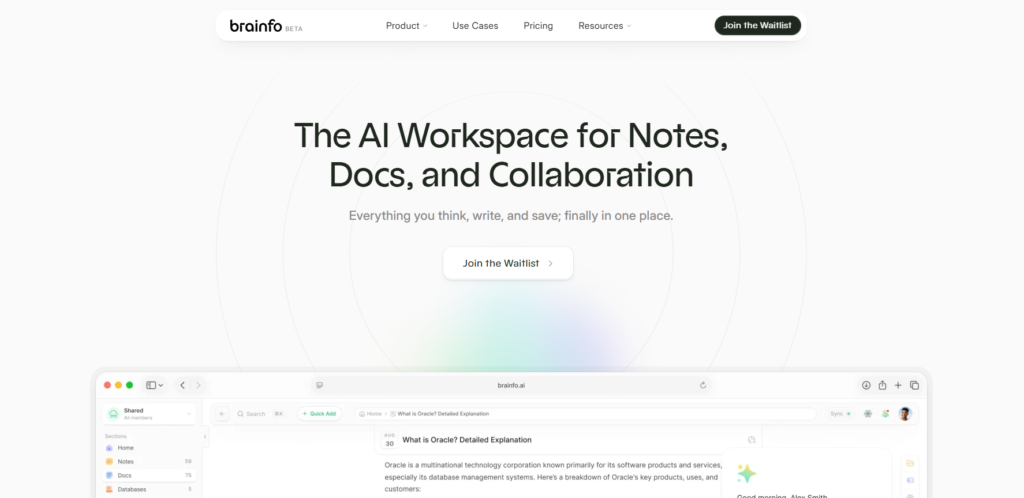
1. Brainfo: Best for Mixed Client Knowledge in One Workspace
Client work rarely stays in one format.
A project might begin with a quick meeting note.
Then you save a few research links.
Later, you turn those ideas into a longer strategy document.
Three months after that, you need to find the original decision again.
That mixed workflow is where Brainfo fits this use case.
A disclosure first: Brainfo is our product, so there is an obvious conflict of interest.
The Brainfo claims in this guide are limited to features documented in the current product source and public product pages. Claims about competitors come from their official documentation.
Brainfo keeps notes, docs, and bookmarks inside the same workspace.
Notes and docs support folders, tags, filtering, and search, so you can build a simple client structure without turning every project into a database.
For example:
Client folder or space → meeting notes → research → working docs → deliverables
The important part is that different forms of client knowledge can remain close to one another.
For teams, Brainfo supports real-time collaborative editing, live presence, and inline comments.
Its local-first model also keeps notes, docs, bookmarks, and tags available offline.
There is one distinction worth keeping clear:
AI chat, web search, and file uploads still require an internet connection.
Where Brainfo’s AI Fits
AI becomes more useful once the workspace starts getting busy.
Brainfo’s agents can:
But AI should be treated as a supporting layer, not the foundation of the system.
If your underlying client structure is messy, adding AI does not automatically make that structure good.
Start with clear client contexts.
Then use AI to help you work with the information inside them.
Brainfo has a free plan. Pro is currently $10 per user per month when billed annually.
Choose it if: your main problem is client knowledge scattered across notes, longer documents, saved links, and research.
Skip it if: your workflow depends heavily on customized relational databases, formulas, and complex database views. Notion is a more natural fit for that type of system.
You can also compare Brainfo with other knowledge tools.
2. Notion: Best for Structured Client Workspaces
What if a client needs more than a notebook?
Maybe you want meetings connected to projects.
Projects connected to clients.
Deliverables connected to statuses, owners, and deadlines.
That is where Notion becomes interesting.
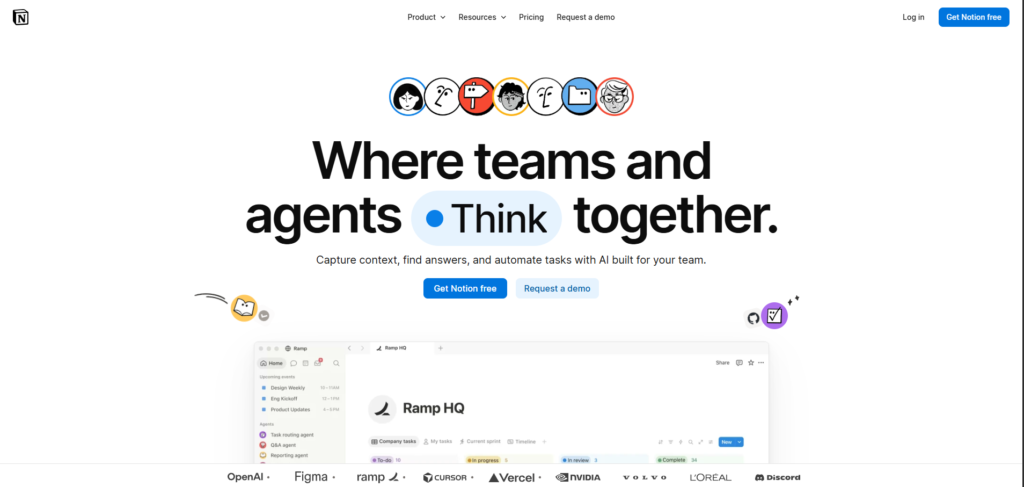
Notion works well when every client needs a structured operating space, rather than a simple collection of notes.
Its databases support custom properties, subtasks, and dependencies.
That means you can build a client system like:
Clients → Projects → Meetings → Deliverables
Then add the structure you need around it.
A consulting team might include:
The appeal is control.
But that control comes with setup cost.
If all you really need is:
“Write this down now and help me find it later.”
A detailed Notion workspace can become much more system than you wanted.
What About Notion Offline?
Offline access is better than it used to be, but it still requires some planning.
All plans can download individual pages for offline use in the desktop and mobile apps.
Paid plans also automatically download recent and favorited pages.
There are still limitations to understand:
- Subpages do not automatically download with a parent page
- An offline database initially includes the first 50 rows of its first view
The current Plus plan is $10 per member per month on the annual pricing view.
Best fit: agencies and consultants who want databases and project tracking beside their client documentation.
3. OneNote: Best for Microsoft-Centered Client Work
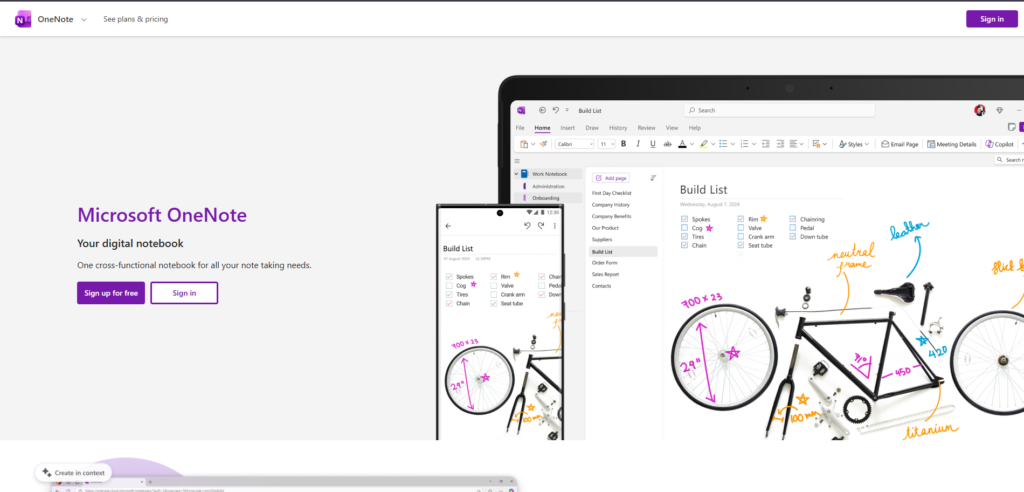
OneNote has a structure that has stayed familiar for years:
Notebooks → Sections → Pages
That simplicity is easy to underestimate.
For client work, it can be exactly what you need.
One client might have one notebook with sections for:
- Meetings
- Research
- Decisions
- Deliverables
If you run a smaller practice, you could also keep several clients in one notebook and separate them using section groups.
No complex database architecture required.
Search Is Where OneNote Gets More Useful
Once your archive grows, browsing manually stops working.
Microsoft’s desktop support documentation says OneNote can search across notebooks for:
- Typed text
- Handwriting
- Words inside inserted images
That can be useful when you know the information exists somewhere but no longer remember exactly where you saved it.
Be Careful With Sharing Boundaries
OneNote’s simple notebook structure also creates something you need to think about carefully.
Microsoft has removed single-page sharing from the current sharing flow.
Sharing a section link can also expose the entire notebook to people who already have access.
For client-sensitive work, notebook boundaries therefore matter.
Do not casually place unrelated clients inside the same notebook if those notebooks may eventually be shared.
All supported OneNote versions are free to download and use, although Microsoft 365 can add premium features.
Best fit: consultants already working in Microsoft 365 who want a familiar system with very little setup.
Watch out for: putting unrelated clients into one notebook and later discovering that your sharing boundary is broader than expected.
4. Obsidian: Best for Local, Linked Client Knowledge
Some people want their client knowledge in a workspace.
Others want it in files they control.
Obsidian belongs firmly in the second group.
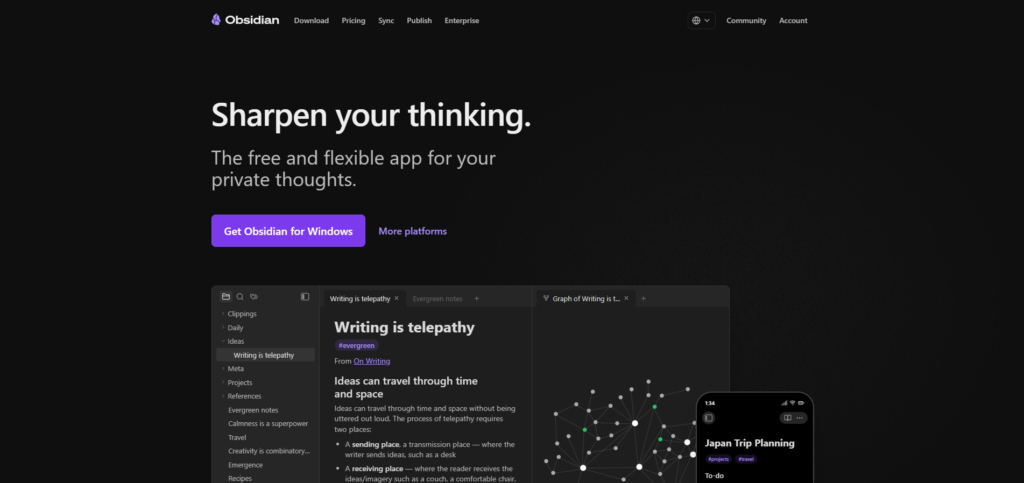
It is a strong option for consultants, researchers, and knowledge workers who want their notes to remain local files and who like connecting ideas together.
The core app is free.
Notes live inside local vaults.
Obsidian’s backlinks show which notes point to the note you are currently reading, while Properties let you add structured fields without moving everything into a cloud database.
That combination becomes especially useful for research-heavy work.
Imagine you create one source note about:
That note can connect to several client projects without being copied into each one.
Instead of creating isolated client archives, you can build a network of reusable knowledge.
Obsidian Sync Is Optional
Obsidian Sync starts at $4 per user per month with annual billing.
It adds:
Obsidian itself continues working without an internet connection and syncs later when connectivity returns.
The trade-off?
You have more decisions to make.
You need to decide how folders, links, tags, and properties should work together.
If you enjoy designing a knowledge system, that freedom is useful.
If you want the app to make most organizational decisions for you, it can feel like friction.
Best fit: solo consultants, researchers, and technical knowledge workers who value local files and linked knowledge.
5. Evernote: Best for Fast Capture and Familiar Notebook Organization
Not every client notes system needs to become a knowledge graph or relational database.
Sometimes you need a notebook.
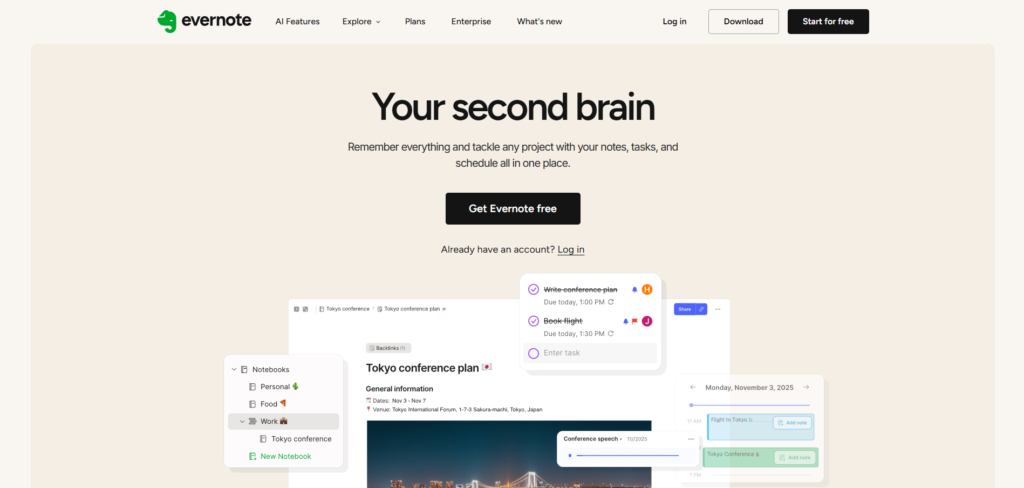
Evernote still has one of the easiest mental models in this comparison:
Notes go into notebooks. Tags connect related material. Search helps you find it later.
For someone moving from a pile of loose notes into a basic client system, that might be enough.
A straightforward setup could be:
- One notebook for each major client
- Tags for recurring topics such as
pricing,research, ordecision - Fast capture whenever something comes up
Simple systems have one major advantage:
You are more likely to keep using them.
Pay Attention to the Current Plan Limits
Evernote’s current limits matter more than they once did.
Evernote Free currently allows:
- Up to 50 notes
- One notebook
- One synced device
- 1 GB of storage
Starter increases those limits to:
- 1,000 notes
- 20 notebooks
- Three synced devices
- 5 GB of storage
Evernote’s current comparison page also lists advanced search, offline notes, attachments, tasks, and calendar features across its plans.
For serious multi-client work, the free tier is difficult to build around.
Fifty notes can disappear surprisingly quickly once you start saving meetings and research.
One pricing detail is intentionally left out here.
Evernote’s official comparison page clearly exposes the current plan limits, but the public material reviewed for this article did not provide a stable USD price for Starter.
Rather than quote a number that may be wrong for your region or checkout flow, this guide leaves it unspecified.
Best fit: people who want fast capture and conventional notebook organization without building a database-heavy workspace.
6. ClickUp Docs: Best When Notes Need to Become Tasks
A note can be useful because it preserves information.
Or it can be useful because someone needs to act on it.
ClickUp is strongest in the second scenario.
It belongs in this comparison for a different reason from most of the other tools:
ClickUp is a project management system first.
That changes the role notes play.
A client workflow can move from:
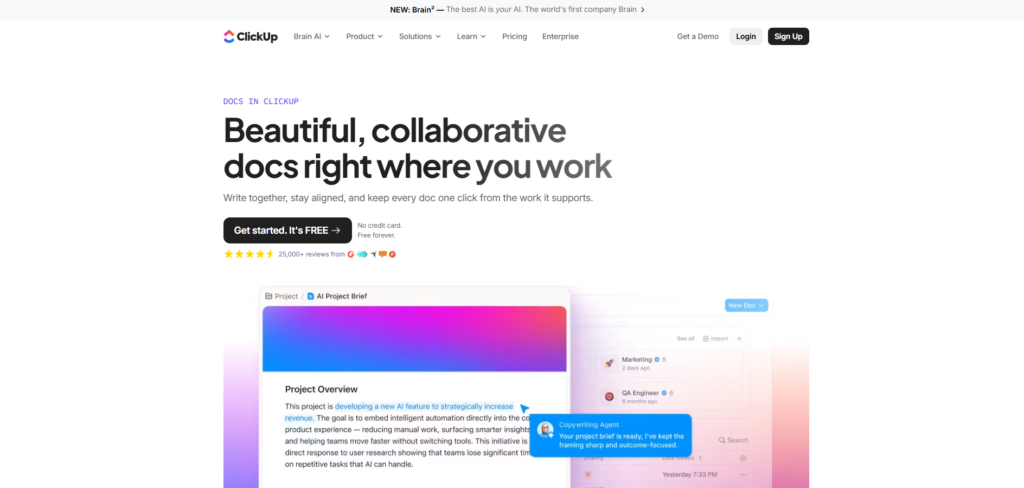
Project → collaborative Doc → tasks → owners → deadlines → delivery
without leaving the same workspace.
For an agency, that connection between documentation and execution can matter more than having the most elegant note editor.
ClickUp’s Free Forever plan includes:
- Collaborative Docs
- Unlimited tasks
- Unlimited members
The Unlimited plan costs $7 per user per month when billed yearly and adds unlimited spaces, folders, storage, integrations, and permission controls for guests.
That can work well when meeting notes regularly produce assigned work.
But the same strength can become a weakness for a solo consultant.
If you mainly want a quiet place to write, store, and retrieve notes, ClickUp may feel oversized.
You are adopting a work management platform, not a minimal note-taking app.
Best fit: agencies and delivery teams whose client notes feed directly into tasks, deadlines, and project execution.
7. Capacities: Best for Solo Consultants Who Think in Connected Objects
Most note-taking apps begin with a page or folder.
Capacities starts from a different idea:
What kind of thing is this?
A Client can be an object.
A Meeting can be an object.
So can a Person, Project, or Research Source.
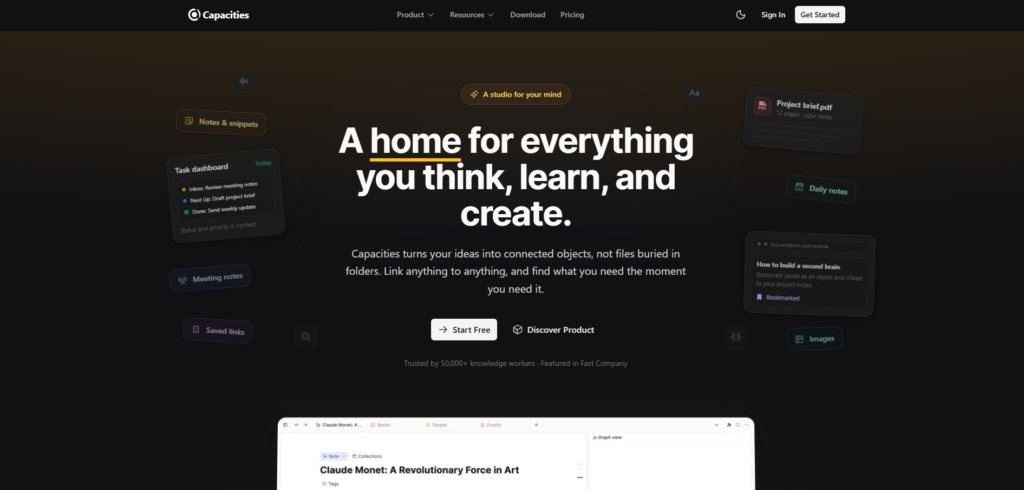
Instead of forcing everything into a traditional folder hierarchy, Capacities lets you create object types and connect them.
For repeatable consulting work, that model can make sense.
For example:
- A meeting can connect to a client and a person
- A research source can connect to several projects
- A client object can become the starting point for related material
The Basic plan is free and currently includes:
Pro adds features such as:
- Smart search
- Smart queries
- Task management
- AI
- Calendar integrations
The Main Limitation: Collaboration
Capacities is much more naturally suited to individual work than team editing.
You can share individual objects for viewing.
But according to Capacities’ documentation, full workspace sharing and collaborative editing are not supported.
Spaces are personal.
That makes Capacities a stronger fit for a solo consultant than an agency where several people need to edit the same client knowledge every day.
There is another detail worth keeping precise.
Capacities supports offline work, but some advanced features still depend on connectivity.
Its documentation has also changed as the search system has evolved, so this guide does not assume that every search mode behaves identically offline.
Best fit: solo consultants who like structured, connected knowledge but do not need a multiplayer team workspace.
How Brainfo Handles a Multi-Client Notes Workflow
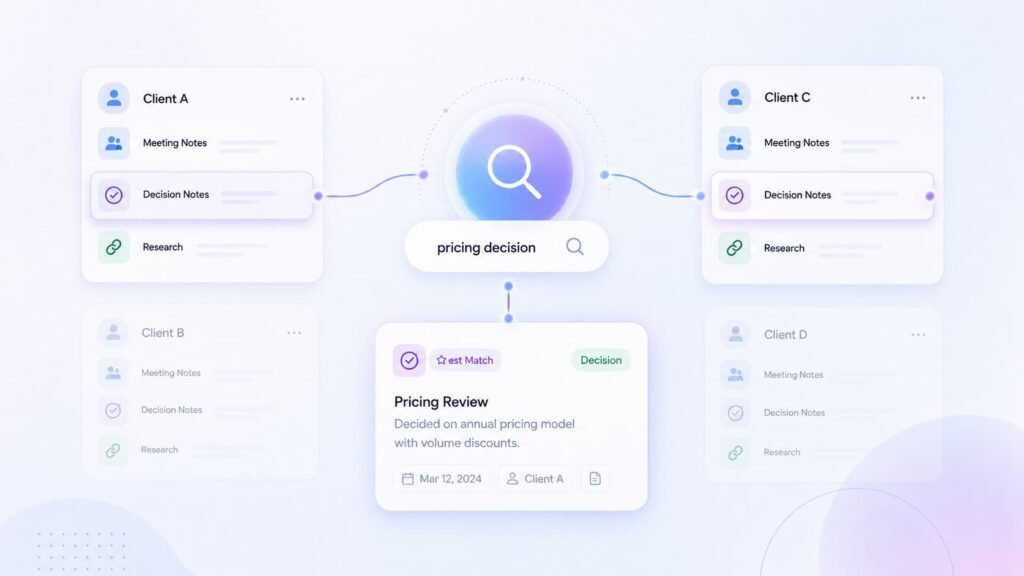
The main reason to consider Brainfo here is not:
“I need a prettier note editor.”
The stronger use case is:
“My client knowledge is spread across too many different formats and places.”
Start by giving every client a clear context.
That could be a folder, a set of tags, or a space.
Then let different types of information stay in the format that makes sense.
A call can remain a quick note.
A strategy draft can become a longer doc.
Research links can stay as bookmarks instead of being pasted into a document and forgotten.
The result is a client workspace where different types of information remain close enough to find and use later.
Where Search and AI Become Useful
At the beginning, a simple structure may be enough.
As the workspace grows, retrieval starts to matter more.
Brainfo’s regular content tools let you filter and search notes and docs.
Its agents can create content and organize folders and tags.
When you are online, the Researcher agent can also work with uploaded files and web pages.
The order matters.
You still need a sensible client structure first.
AI helps you work with that structure after you have one.
For a solo consultant, this can reduce the number of places where client context gets lost.
For a team, real-time editing and team spaces can make the same information available to colleagues without turning every note into another email attachment.
Which Note-Taking App Should You Choose?
Do not start by asking which app has the longest feature list.
Start with the thing that is failing in your current workflow.
Are your notes, documents, research links, and client knowledge scattered across several tools?
Brainfo is a direct fit because those different content types can live in one workspace.
Do you want client workspaces built around databases and custom properties?
Notion is stronger.
Does your organization already live inside Microsoft 365?
OneNote gives you a simpler notebook-based system with very little setup.
Do local files and linked knowledge matter more than a ready-made workflow?
Choose Obsidian.
Do you mainly want conventional notebooks and fast capture?
Evernote remains easy to understand, although you should check current paid-plan limits before committing.
Do notes matter mainly because they turn into assigned work?
ClickUp Docs makes more sense than a standalone notes app.
Do you work alone and prefer connected client objects over traditional folders?
Capacities is the interesting alternative.
There is no universal winner here.
The best tool is the one that solves the specific reason your current client notes system keeps breaking down.
A Simple Way to Organize Notes Across Multiple Clients
The app matters.
But your filing system matters too.
Even the best note-taking tool becomes difficult to use if your structure changes every week.
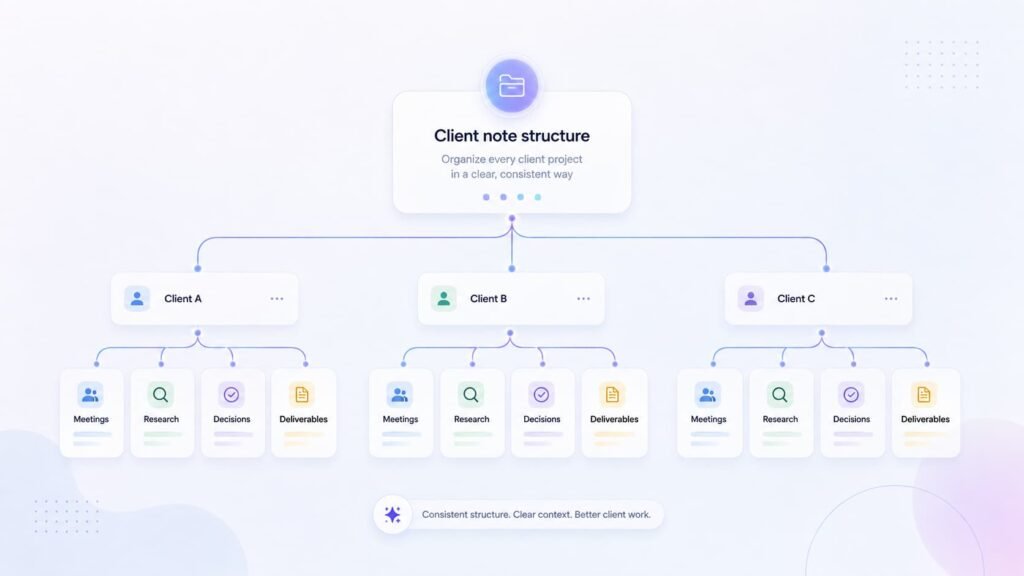
Start with one obvious context for every client:
Clients
├── Client A
│   ├── Meetings
│   ├── Research
│   ├── Decisions
│   └── Deliverables
├── Client B
│   ├── Meetings
│   ├── Research
│   ├── Decisions
│   └── Deliverables
└── Client C
    ├── Meetings
    ├── Research
    ├── Decisions
    └── Deliverables
That is enough structure for most people to understand where something belongs.
Then make your titles useful.
Compare these:
Meeting notes
and:
Client A pricing review, June 18
The first title tells you almost nothing.
The second gives both you and search something useful to work with.
Do the Same for Important Decisions
Meetings often contain decisions that matter months later.
Do not leave an important decision buried halfway down a long transcript.
Surface it somewhere you can retrieve it later.
If your app supports links, link the decision back to the original meeting.
Now you can find the answer quickly while still preserving the context behind it.
Keep Tags Boring
Tags are helpful until they become a taxonomy project.
Simple tags such as:
pricingresearchdecisionfollow-up
are easy to remember.
A complicated tagging system that needs its own documentation is much harder to maintain.
A good client notes system should still make sense after you ignore it for two weeks.
That is a better test than how impressive it looks on the day you build it.
Frequently Asked Questions
What Is the Best Note-Taking App for Multiple Projects?
The best choice depends on how your work is structured.
Brainfo is a good fit when notes, docs, bookmarks, and research need to stay together.
Notion suits database-driven project systems.
OneNote works well for simpler notebook-based organization, especially if you already work inside Microsoft 365.
How Should I Organize Notes for Different Clients?
Give each client a clear top-level context.
Depending on your app, that might be a:
Folder
Notebook
Space
Vault
Database record
Inside it, separate recurring material such as meetings, research, decisions, and deliverables.
Use descriptive titles so search can recover the information later even when you no longer remember exactly where you saved it.
Is Notion or OneNote Better for Client Notes?
Notion is better when you want databases, custom properties, linked project records, and multiple views.
OneNote is simpler when you want notebooks, sections, pages, and strong search without designing a database system first.
Should Client Meeting Notes Be Kept With Project Notes?
Usually, yes.
Meeting notes are easier to use when they stay in the same client context as research, decisions, and deliverables.
Important decisions should also be surfaced separately so they do not disappear inside long meeting notes or transcripts.
What Should I Look for in a Client Notes App?
Prioritize:
Clear separation between clients
Reliable search
Easy capture
Export options
Collaboration that matches your team size
If your projects also involve research, files, links, and longer documents, check whether the app can keep those materials close to your notes rather than forcing you to spread the project across several disconnected tools.