
You rarely open an AI tool with a perfectly clean slate. Real work is messier than that.
Maybe Tuesday’s meeting notes are still sitting in your workspace. There is a half-finished project brief beside them, three research files you meant to read, and a document that contains an important decision you no longer remember clearly. Even your folder structure may have stopped making sense months ago.
This is exactly where these Brainfo AI prompts come in.
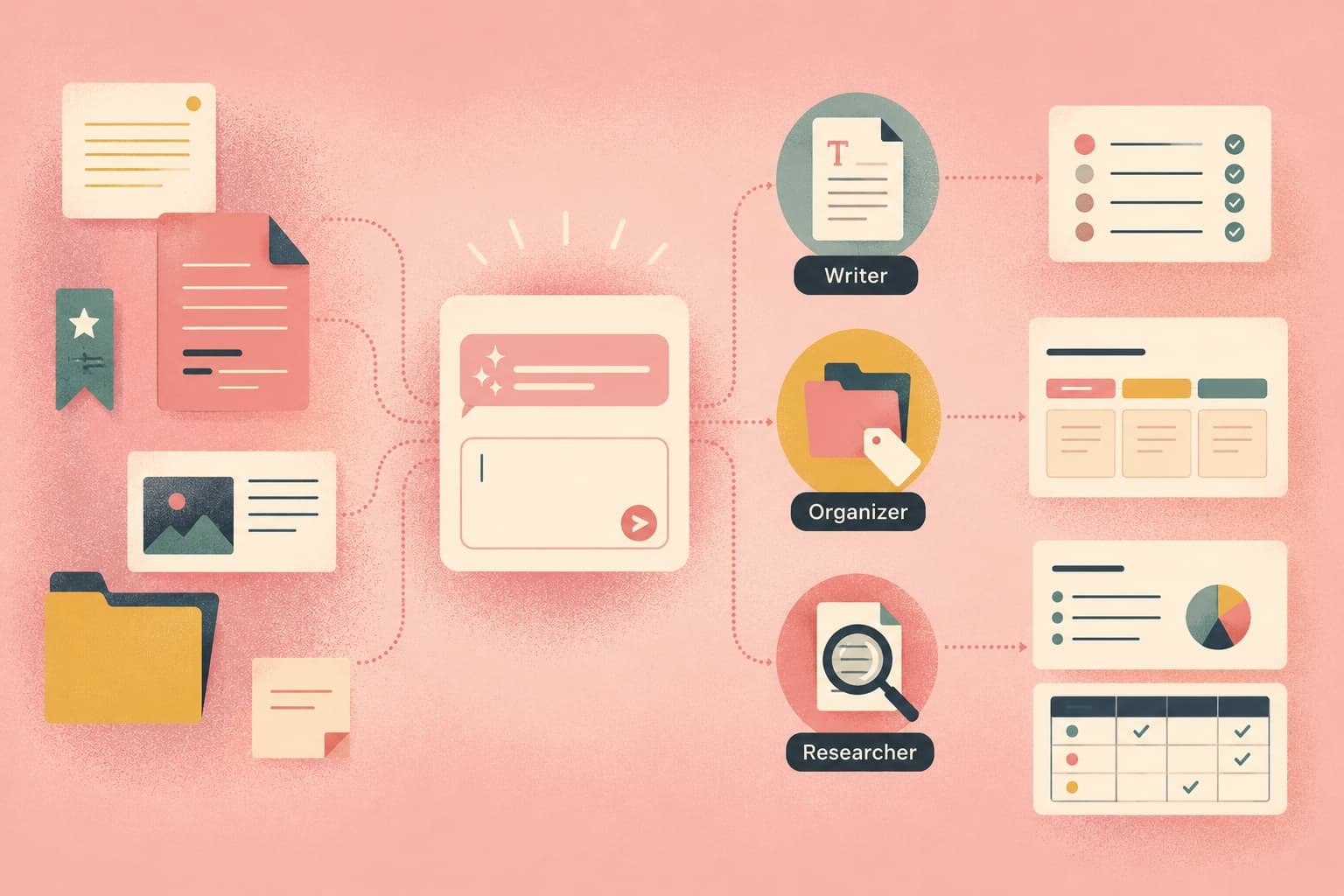
They are built around the material you already have: notes, documents, uploaded files, research, and the rest of your Brainfo workspace. Sometimes you need an answer. Sometimes you want Brainfo to create something or organize the material for you.
Because Brainfo uses specialist AI agents for writing, organization, and research, the request does not always have to end with another paragraph of advice. It can end with a workspace action.
You can use every prompt exactly as written, or swap anything inside [brackets] for your own project, topic, document, or preferred output.
The easiest way to get a useful result is simple: give Brainfo the right material, tell it what job you want done, and name the output when the format matters.
Then ask.
1. Ask better questions about your notes and docs
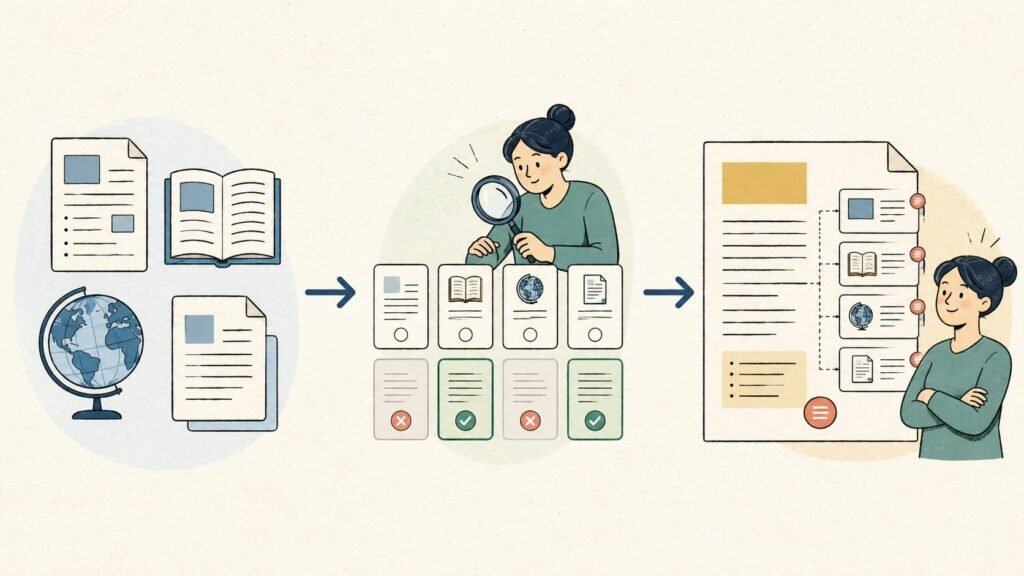
Finding the document is only the first step. Most of the time, you opened it because one answer is hiding somewhere inside a page you do not want to reread from top to bottom.
Brainfo can read a specific document and answer questions about that content. On the web app, its context-aware assistant can also attach the resource you are already viewing.
So instead of searching line by line, start with one of these seven prompts.
1. Find a specific decision
Read this document and find the decision we made about
[topic]. Tell me the decision, the reasoning behind it, and any unresolved issues mentioned nearby.
Use this with PRDs, planning docs, meeting records, or project notes when the decision is buried in the middle of everything else.
2. Get the answer without rereading the whole doc
What does this document say about
[specific question]? Give me the direct answer first, then point out the relevant supporting details.
This is especially useful when you know roughly what you need, but you do not want to scan the whole document to find it.
3. Explain something that is too dense
Explain the section about
[topic]in plain English. Keep the important details, but remove unnecessary jargon.
A technical note can easily become harder to read than the idea it is trying to explain. This prompt helps bring the idea back into focus.
4. Pull out the assumptions
Read this document and list the assumptions the author is making. Separate explicit assumptions from ones that appear to be implied by the text.
Try this before a review meeting. Assumptions are easy to miss when everyone has been staring at the same document for too long.
5. Find every deadline in a document
Find every date, deadline, milestone, or time-sensitive commitment mentioned in this document. Return them as a simple list with the related task or event.
6. Find the unanswered questions
Read this document and identify questions that are raised but never clearly answered. Rank them by how much they could affect the project.
7. Turn a long doc into a briefing
Give me a briefing on this document for someone joining the project today. Focus on what has been decided, what is still open, and what they need to know before taking action.
This is the prompt to use before you forward a 20-page document and write, “Skim this before the call.” Give the reader the briefing instead.
2. Summarize and extract what matters
You can always type “Summarize this.” The problem is that Brainfo still has to guess what kind of summary you actually need.
A manager heading into a meeting needs something different from a person preparing a report. Tell the AI what matters, and the summary becomes much more useful.
Try these prompts instead.
8. Create a five-minute summary
Summarize this document for someone who has five minutes to understand it. Keep the important context, decisions, risks, and next steps.
9. Extract the key points
Pull out the most important points from this document. Remove repetition and minor background details.
10. Extract decisions only
Find every decision recorded in this document. For each one, tell me what was decided and any reasoning that was documented.
11. Find risks before they become surprises
Identify every risk, concern, dependency, or blocker mentioned in this document. Group related items together.
12. Create an executive briefing
Turn this material into a short executive briefing. Focus on the current situation, important findings, decisions, risks, and what needs attention next.
13. Separate facts from assumptions
Review this document and separate the content into facts, assumptions, opinions, and unresolved questions. Do not add information that is not in the source.
Keep that last instruction when the source matters. With internal notes, you usually want Brainfo to separate what is there, not fill the gaps with something new.
3. Turn meeting notes into action
Meeting notes are easy to save and even easier to forget. Everyone leaves the call, the document goes into a folder, and two weeks later nobody can remember which sentence was the actual decision.
Your notes should do more than prove the meeting happened. These prompts turn them into something you can act on.
14. Extract decisions and action items
Turn these meeting notes into two sections: decisions made and action items. For each action item, include the owner and deadline only if they are explicitly mentioned.
The last part matters. If the notes never named an owner or deadline, you do not want the AI quietly inventing one.
15. Build a follow-up checklist
Turn these meeting notes into a follow-up checklist. Include only actions that are supported by the notes, and group related tasks together.
16. Find unresolved questions
Review these meeting notes and list every unresolved question, disagreement, or item that still needs a decision.
17. Turn meeting notes into a project brief
Use these meeting notes to draft a project brief with the goal, current decisions, requirements, constraints, open questions, and next actions.
You can also use meeting notes as the source for a structured document such as a PRD. The important part is keeping the draft tied to what the notes actually support.
18. Write a status update from the meeting
Turn these meeting notes into a concise project status update. Include progress, decisions, blockers, and next actions. Keep it suitable for sharing with the team.
This is one of those boring jobs that eats time for no good reason. The information already exists. You just need it in a shape the rest of the team can use.
4. Organize your Brainfo workspace
This is where the list starts to feel different from a normal chatbot prompt collection.
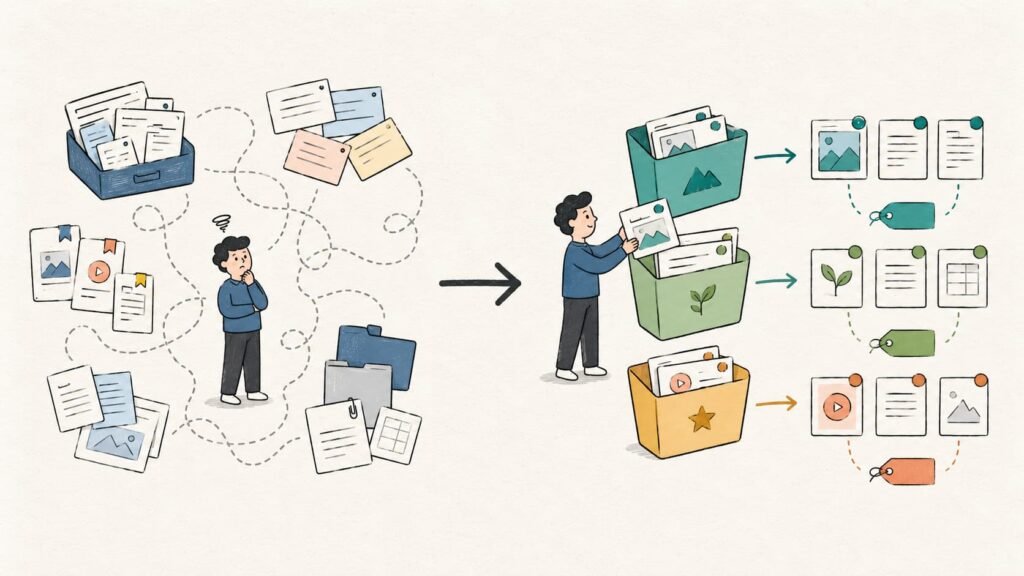
Brainfo’s Organizer agent can create folders and tags, move items into folders, assign or remove tags, and rename folders or tags. In other words, you can ask it to do organization work instead of only asking how you should organize things yourself.
19. Create a project folder
Create a folder called
[project name]for this project.
Not every useful prompt needs a paragraph of instructions. Sometimes this is enough.
20. Create useful tags
Create tags for
[research / customer interviews / planning / competitor research]so I can organize this work consistently.
Use your own categories here. The point is to match the tags to the way you already work.
21. Move project items into a folder
Move these project items into the
[folder name]folder.
When you ask Brainfo to move something, make the scope obvious. Tell it which items you mean.
22. Tag a set of project documents
Add the tag
[tag name]to these documents related to[project/topic].
23. Clean up tagging
Review the tags on these items and remove
[old tag], then assign[new tag]where appropriate.
24. Rename a confusing folder
Rename the folder
[old name]to[new name].
It looks almost too simple to include in a prompt list. That is the point. Renaming a folder should not require a clever prompt formula.
25. Organize material around a project
Organize these items for
[project]using folders and tags that match their purpose. If the right organization is not clear from the material, explain the uncertainty instead of guessing.
The practical difference is that Brainfo’s specialist agents can carry out these organization actions instead of stopping at advice.
One boundary is worth keeping clear: Brainfo’s current general workspace search is keyword-based across titles and descriptions. Do not treat it as semantic search across the full contents of every workspace document.
5. Research uploaded files without reading everything yourself
Some research tasks are hard because the question is complex. Others are hard because the answer is buried under PDFs, spreadsheets, Word documents, and a CSV nobody bothered to document.
Brainfo’s Researcher can selectively list, read, search, and inspect uploaded files on demand. It works through file research in batches instead of pretending every file can sit inside one unlimited context window.
26. Find recurring themes across files
Review these uploaded files and find the themes that appear repeatedly. For each theme, tell me which files support it and summarize the relevant evidence.
27. Compare the conclusions
Compare the main conclusions in these files. Show where the sources agree, where they differ, and what each source appears to base its conclusion on.
28. Find evidence for a question
Search these files for evidence related to
[research question]. Return the most relevant findings and identify the source file for each one.
29. Find disagreements between sources
Review these files and identify meaningful disagreements or contradictions. Explain what each source says without trying to force them into agreement.
30. Build a research brief
Create a research brief from these uploaded files. Include the main findings, supporting evidence, disagreements, gaps, and questions worth investigating next.
31. Find the files worth reading first
From these uploaded files, identify which ones are most relevant to
[topic]. Explain briefly why each selected file matters.
Think of it as on-demand research, not an all-at-once file dump. Brainfo reads the material it needs as it works through the question.
6. Research the web and work with sources
Your workspace tells you what you already know. The web is useful when you need to know what changed outside it.
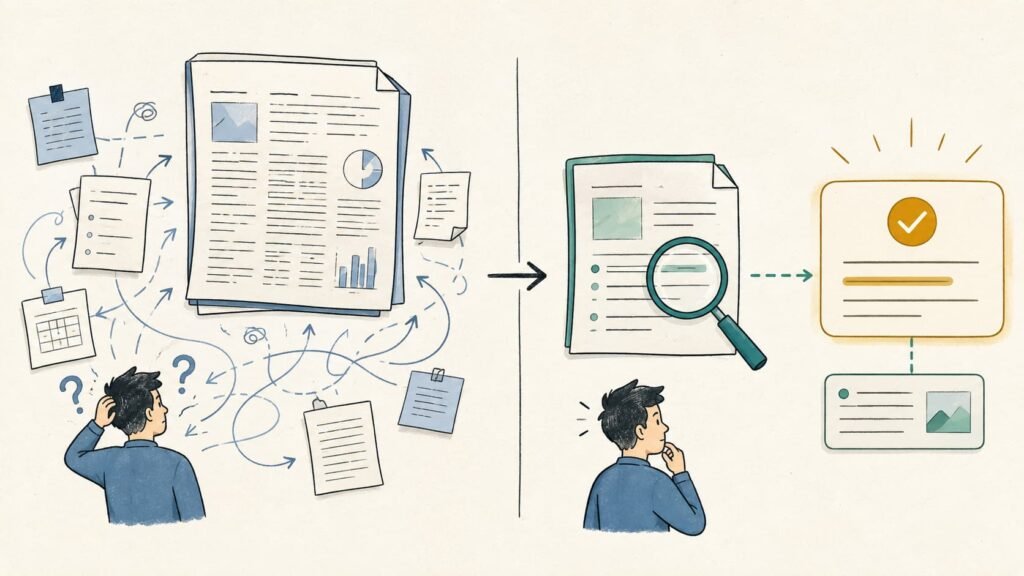
Brainfo includes opt-in web search for live research, plus a separate web-fetch capability for reading a specific URL. Research answers can include cited sources, which makes it easier to check where a claim came from.
32. Compare competitors using current information
Research
[competitor A]and[competitor B]using current web sources. Compare their approach to[specific topic]in a table and cite the sources behind each major claim.
33. Research a current topic
Research the latest reliable information about
[topic]. Summarize what has changed, what appears well supported, and what is still uncertain. Include sources.
If the question depends on current information, turn on web search first.
34. Read a specific page
Read this URL:
[URL]. Summarize the points most relevant to[my project/question]and separate the author’s claims from supporting evidence.
35. Compare external research with your material
Review this web source and compare its main claims with the material I have provided. Show agreements, contradictions, and any new questions it raises.
36. Build a sourced comparison table
Research
[products/topics/options]and create a comparison table covering[criteria]. Cite the source used for each important fact.
Use this when a simple request for competitor research is about to turn into twelve browser tabs and a spreadsheet you already regret opening.
7. Turn existing knowledge into something useful
AI demos love the blank page. Real work usually starts somewhere else.
You already have meeting notes, research, project documents, and rough ideas that you trust. Brainfo’s Writer agent can turn that material into documents, notes, and bookmarks, while its research tools can gather the material those outputs need.
37. Turn notes into a structured document
Turn these notes into a structured document. Keep all important information, remove obvious duplication, and use headings that reflect the actual content.
38. Draft a project brief
Use this material to draft a project brief covering the objective, background, requirements, constraints, open questions, and next actions.
39. Draft a PRD from existing material
Turn these meeting notes and research into a draft PRD. Use only information supported by the material. Mark missing information as
[NEEDS INPUT]instead of inventing it.
That instruction keeps missing requirements visible. A blank marked [NEEDS INPUT] is far more useful than a confident guess hiding inside the PRD.
40. Create an executive summary
Turn this research into an executive summary for
[audience]. Lead with the findings that affect decisions and keep supporting detail concise.
41. Rewrite for a different audience
Rewrite this document for
[executives / customers / engineers / a general audience]. Preserve the facts and decisions, but adjust the explanation and level of detail for that reader.
42. Turn information into a comparison table
Convert this material into a comparison table. Use
[criteria]as the columns and keep uncertain or missing information clearly marked.
43. Turn scattered ideas into an outline
Organize these ideas into a logical outline. Group related points, remove duplicates, and flag ideas that do not clearly fit anywhere yet.
44. Draft a project update
Use these project materials to draft a concise status update for
[audience]. Focus on current progress, recent decisions, blockers, and immediate next actions.
A lot of useful AI writing comes down to one simple idea: take the information I already have and put it into the format I need.
8. Review projects, decisions, and recent work
A surprising amount of knowledge work is really catch-up work. You come back to a project after a few days of meetings and suddenly need to reconstruct what changed while your attention was somewhere else.
Brainfo can work from recently updated notes and documents, so these prompts are useful when you need to get your bearings quickly.
45. Catch up on recent project material
Catch me up on the most recently updated material for this project. Focus on important changes, decisions, and open issues.
46. Summarize recently updated notes and docs
Review the most recently updated relevant notes and documents and give me a concise summary of what I should know.
47. Reconstruct the decisions so far
Based on this project material, list the decisions that have already been made. Include the supporting context where it is available.
48. Find what still needs a decision
Review this project material and identify issues that still appear to need a decision. Explain why each one is unresolved.
49. Find contradictions before the meeting
Review these materials and identify contradictions, conflicting requirements, or unresolved disagreements that I should know about before the next discussion.
50. Build a status report
Turn the current project material into a status report covering progress, recent decisions, blockers, unresolved issues, and next actions.
There is one limit to keep in mind here. Brainfo can work from recently updated material, but exact date-bounded requests such as “summarize everything from last week” are not currently a verified shipping capability. When the distinction matters, use wording such as “latest” or “most recently updated.”
How to get better results from Brainfo AI prompts
Good prompting does not need to feel like writing code. You do not need a 14-part formula. You just need to remove the ambiguity that makes the AI guess.
Start with the material. Tell Brainfo which document, uploaded files, or URL it should work from.
Then tell it the job. Be specific.
“Review this” leaves almost everything open. “Find every unresolved product requirement in this PRD” gives the AI a clear task.
And when a wrong answer would cause problems, add a constraint. For example:
Use only information found in these files. If something is missing, mark it as unknown.
Then tell Brainfo what the answer should look like when the format matters.
Compare these two requests:
Analyze these interview notes.
And:
Review these customer interview notes, find repeated objections, and return a table with the objection, supporting evidence, and a useful follow-up question.
The material is the same, but the second request gives Brainfo a much clearer job.
Do not confuse detail with length, though. If Brainfo already has the right context, “Turn this into a checklist” may be all you need.
Brainfo can do more than return an answer
Brainfo does not route every request through the same kind of work. Different jobs can go to specialist agents.
The Writer can create and manage notes, documents, and bookmarks. The Organizer works with folders and tags. The Researcher reads and searches uploaded files and can fetch material from the web.
This matters because some prompts can finish with an action instead of advice.
Ask Brainfo to turn meeting notes into a project document, and the Writer can create it. Ask it to organize project material, and the Organizer can work with folders and tags. Ask it to compare uploaded research or current web sources, and the Researcher can gather the material needed for the answer.
There is still a boundary around risky actions. Brainfo separates read, write, and destructive actions by risk, and destructive actions such as permanent deletion require explicit approval.
For a broader view of the workspace, see Brainfo features.
So when you are deciding what to ask, start with one question: what piece of knowledge work would you rather hand off?
Start there.
Frequently asked questions about Brainfo AI prompts
What can I ask Brainfo AI to do?
You can ask Brainfo to work with specific documents, uploaded files, and web sources. It can also create or manage content, organize folders and tags, summarize material, and research questions using the material you provide. These jobs can be handled by Brainfo’s specialist Writer, Organizer, and Researcher agents.
The exact capability still depends on the material and action involved. Point Brainfo toward the relevant content instead of assuming it can inspect every item in your workspace automatically.
Can Brainfo AI answer questions about my notes?
Yes, as long as the relevant note or document is in context. Brainfo can read a specific document and answer questions about it. Its general workspace search is currently keyword-based across titles and descriptions, so do not treat it as semantic search across the full contents of every workspace document.
Can Brainfo AI organize my notes and folders?
Yes. Brainfo’s Organizer agent can create folders and tags, move items into folders, assign or remove tags, and rename folders or tags.
Just make the scope clear when you ask for an organization action, so the agent knows exactly which items you mean.
Can Brainfo AI research uploaded files?
Yes. Brainfo’s Researcher can work with uploaded files and selectively read or search them on demand. File research happens in batches rather than through unlimited context, so expect Brainfo to read the material it needs as it works through the request.
Does Brainfo AI work offline?
Brainfo’s content layer is local-first, so notes, docs, bookmarks, and tags can keep working offline and sync when connectivity returns. AI chat, web search, and file-upload features still require an internet connection.
Pick one real task and ask
The easiest way to waste a list like this is to bookmark it and never use it.
Pick something already on your desk instead: a project document, meeting notes, a group of research files, or a competitor page you have been meaning to read.
Choose one prompt and ask Brainfo to handle the next piece of work you would otherwise do manually. That is enough to see which kinds of requests are actually useful in your workflow.
If you want to see where Brainfo fits relative to other knowledge tools, see how Brainfo compares.