

A research PDF about onboarding could reasonably go in Research, Product, Marketing, Customer Experience, or Reading.
That is the problem with organizing information by subject. The same piece of information can belong to several topics, so every filing decision becomes a small taxonomy problem.
The PARA method takes a different approach. Instead of asking what information is about, you organize it according to what you need it for now.
PARA stands for Projects, Areas, Resources, and Archives. Developed by Tiago Forte, it organizes digital information around active goals and responsibilities rather than broad subject categories. The core principle is actionability: information connected to current outcomes should be easier to reach than material that is merely interesting or inactive. Forte Labs explains the method in its canonical PARA guide.
The four categories are easy to memorize. Applying them consistently is harder.
This guide focuses on classification, setup, migration, movement between categories, and lightweight maintenance.
What is the PARA method?
PARA uses four top-level categories:
The useful distinction is that the categories reflect your relationship to information.
A subject-based system might contain Marketing, Design, Finance, Research, and Psychology. The PARA method asks a more practical question:
What is this information helping me do right now?
Projects: outcomes with a finish line
A Project is something you are actively trying to complete.
Examples:
- Launch the redesigned onboarding flow
- Hire a senior product designer
- Publish the Q3 research report
- Plan a customer workshop
- Complete the annual tax filing
“Product management” is not a Project because you cannot permanently finish it. “Ship the onboarding redesign” can be a Project because there is a point when you can call it done.
Can I describe what completion looks like? If yes, you probably have a Project.
Areas: responsibilities you continue to maintain
An Area is a part of your work or life that requires ongoing attention.
Examples include:
- Product management
- Finance
- Health
- Recruiting
- Customer support
- Team management
- Home
An Area normally has no final completion date. You may improve your health, reduce support response times, or become better at managing a team, but the responsibility continues.
Projects often exist inside Areas.
For example:
Area: Product management
Project: Launch onboarding redesign
Area: Marketing
Project: Publish the September campaign
Area: Finance
Project: Complete the annual tax filing
The Area describes what you maintain. The Project describes what you are trying to finish.
Resources: useful material without a current obligation
Resources contain potentially useful information that is not attached to an active outcome or a continuing responsibility.
Examples might include:
- onboarding research
- pricing strategy examples
- writing techniques
- product-led growth articles
- interface inspiration
- negotiation notes
- favorite recipes
A Resource can matter without being actionable today.
If you save twelve articles about user onboarding because the subject interests you, “User onboarding” can be a Resource. If you are currently redesigning onboarding, the material you need for that work may belong with the active Project instead.
Archives: inactive information worth keeping
Archives contain material from Projects, Areas, or Resources that is no longer active.
A completed launch can move from Projects to Archives. An old responsibility can move from Areas to Archives. A Resource you no longer use can also be archived.
Archive is a status, not a digital graveyard. The information may still be useful, but it does not deserve active attention right now.
Organize by actionability, not subject
Suppose you are preparing a product launch and find a research report about onboarding.
A subject-based system might send it to:
Research > UX > Onboarding
PARA asks whether the report is directly helping the current launch. If it is, placing it with the active Project makes it easier to use while doing the work.
Later, when the launch ends, reusable research might move to Resources while completed project context moves to Archives.
The file has not changed. Its relationship to your work has.
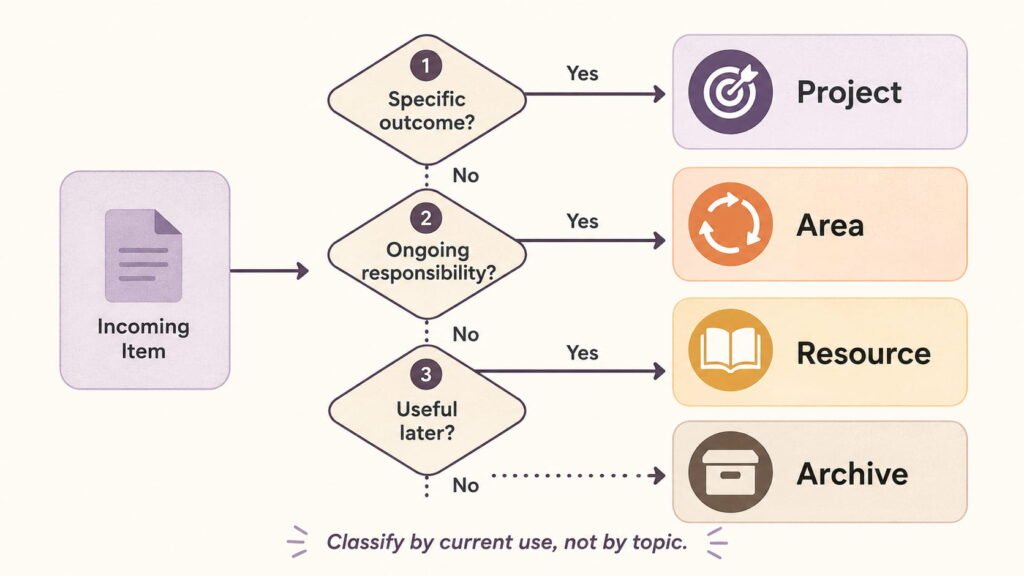
Use this decision rule to classify information in PARA
When people struggle with PARA, the problem is often not understanding the definitions. It is handling information that seems to fit more than one category.
Use this sequence:
- Is this connected to a specific outcome I am actively trying to finish? Put it in a Project.
- If not, am I responsible for maintaining something related to it over time? Put it in an Area.
- If not, is it useful or interesting enough that I may want it later? Put it in Resources.
- Is it no longer active or relevant right now? Move it to Archives.
The order matters because Projects represent the most immediately actionable context.
Project or Area?
This is one of the most common classification problems.
Use the finish-line test.
| Ask | Project | Area |
|---|---|---|
| Does it have a defined outcome? | Yes | Usually no |
| Can it be completed? | Yes | Continues |
| Does it represent an ongoing responsibility? | Sometimes within an Area | Yes |
| Example | Launch new pricing page | Marketing |
| Example | Hire support lead | Team management |
| Example | Complete tax return | Finances |
Consider “Website.”
If you are rebuilding the company website, Website Redesign is a Project.
If you are responsible for keeping the corporate website accurate, Website may be an Area.
The topic is nearly identical. The commitment is different.
Area or Resource?
Ask about responsibility.
Suppose you have information about photography.
If photography is an interest and you collect useful techniques, it can be a Resource. If you are responsible for producing photography for company campaigns every month, some material may belong inside an Area connected to that responsibility.
Try this question:
Would something become a problem if I ignored this category for six months?
If you are responsible for maintaining a standard, it is probably an Area. If nothing is expected of you and you simply want to keep useful information, it is more likely a Resource.
When should something move to Archives?
Move an item to Archives when it stops competing for active attention.
Common triggers include:
- a Project is completed
- a Project is paused indefinitely
- you are no longer responsible for an Area
- a Resource is no longer relevant
- a role or client relationship ends
- an old version has been replaced but is still worth retaining
Archive gives you a middle option between deletion and active storage.
What if something fits more than one category?
Aim for a reliable place to retrieve information, not perfect categorization.
A competitive research report could fit Pricing, Competition, Research, Strategy, or the current Project. If it is helping you make an active pricing decision, put it with that Project. If it later becomes reusable reference material, move it to Resources.
When your software supports tags or links, use them for secondary relationships instead of duplicating entire libraries.
A worked PARA example
Imagine a product manager preparing a new onboarding experience.
Project: Launch onboarding redesign
Possible contents:
- launch brief
- experiment plan
- research synthesis
- implementation requirements
- meeting notes
- launch checklist
Area: Product management
Possible contents:
- team processes
- recurring product rituals
- decision principles
- role responsibilities
Resource: User onboarding research
Possible contents:
- onboarding patterns
- research papers
- saved articles
- interface references
Archive: Q2 onboarding experiment
The experiment is complete, but its results may matter later.
“Onboarding” appears in more than one place. That is not a failure. PARA reflects how information is being used, not whether two items share a subject.
How to implement the PARA method from scratch
A common mistake is treating setup as a taxonomy-design project.
You do not need thirty nested subfolders before the system becomes useful.
Start with four top-level categories:
- Projects
- Areas
- Resources
- Archives
Then build outward from actual work.
Create only four top-level categories first
Resist the urge to plan every subfolder you might ever need.
Create the four categories, then add structure only when real information creates a retrieval problem. Forte’s official PARA guidance emphasizes keeping the organization system simple enough that maintaining it does not become another form of work. See the canonical PARA guide.
Add current Projects before reference material
List the outcomes you are actively working toward.
For a knowledge worker, that might include:
- Launch customer research study
- Prepare quarterly business review
- Redesign onboarding flow
- Hire data analyst
- Publish industry report
Create a place for each active Project and add only the information you currently need.
Starting with active work gives PARA immediate utility. Sorting years of reference material first often does not.
Add Areas you are genuinely responsible for
Now list responsibilities that continue when individual Projects finish.
Examples:
- Product management
- Team leadership
- Recruiting
- Finance
- Health
- Home
Avoid turning every subject into an Area. “Machine learning” might be a Resource if you are simply interested in it. It becomes an Area only when you have a continuing responsibility connected to it.
Add Resources when they have plausible future value
Resources work best when they remain selective.
Do not interpret the category as permission to collect everything.
A saved item should have a plausible reason to remain useful. If you repeatedly save information you never revisit, capturing less may be a better fix than building a deeper Resource hierarchy.
Leave old material alone until you need it
You do not have to migrate your digital history before PARA becomes operational.
Build the system around current work first. Then migrate older information selectively.
How to migrate existing notes and files into PARA
Most people are not starting from zero.
They already have:
- old note-taking apps
- cloud storage
- bookmarks
- desktop folders
- downloads
- archived project documents
- saved PDFs
- years of miscellaneous references
Trying to classify every historical item before doing real work turns organization into a project of its own.
A better migration process works from present relevance backward.
Do not reorganize your entire history first
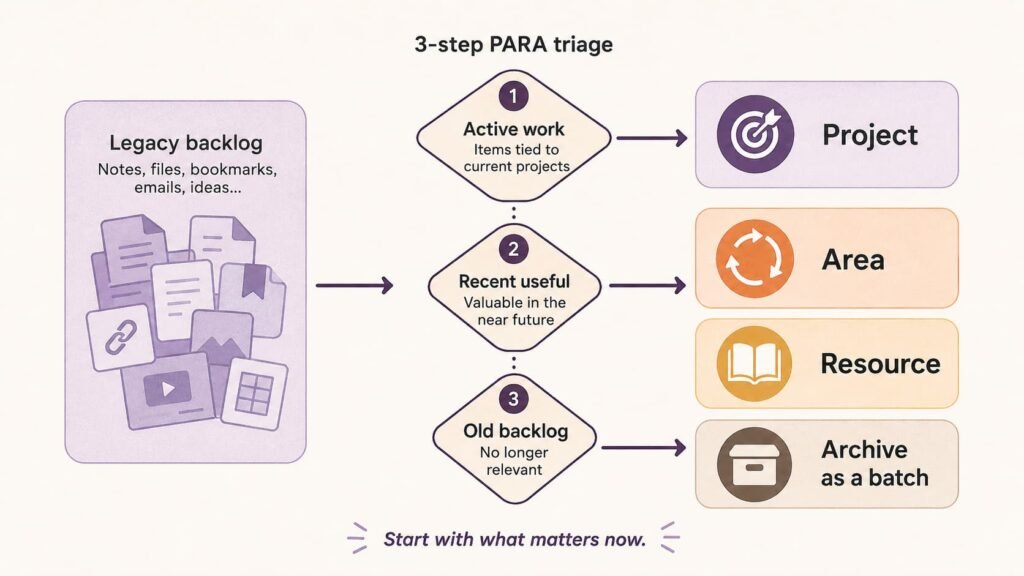
Create your PARA structure, then leave the bulk of your old library where it is temporarily.
You can place it in a single location such as Legacy Archive or Pre-PARA Files.
The purpose is to separate migration from implementation so you can use the system before perfecting historical organization.
Start with active work
Move information connected to current Projects first.
Ask:
- What am I working on this week?
- Which documents support those outcomes?
- Which meeting notes do I keep reopening?
- Which references are needed for current decisions?
These items have the highest immediate value because they are already part of active work.
Triage recent material next
Once Projects are usable, review recent information.
A recent set of notes, bookmarks, or documents is more likely to contain active responsibilities and reusable Resources than material you have not opened in years.
Classify what still matters. Archive the rest in batches.
Batch old material instead of reviewing every file
Suppose you have 3,000 files from an old drive.
Opening every file and deciding whether it belongs in Projects, Areas, Resources, or Archives is thorough but expensive.
Most are already inactive. Keep the old directory intact inside Archives and extract individual items only when a real need appears.
Migrate one storage location at a time
If information is spread across five tools, do not attempt five simultaneous reorganizations.
Choose one, such as your current note-taking app. Move to cloud documents, bookmarks, or local files later.
The objective is consistent classification, not centralizing everything at any cost.
PARA itself is tool-agnostic. Forte Labs publishes implementation examples for Apple Notes, Evernote, Notion, Obsidian, OneNote, Microsoft Teams, WorkFlowy, and Anytype. See the official app implementation guide.
How information moves through PARA
PARA categories should not become permanent labels.
Your work changes, so information should be allowed to change status with it.
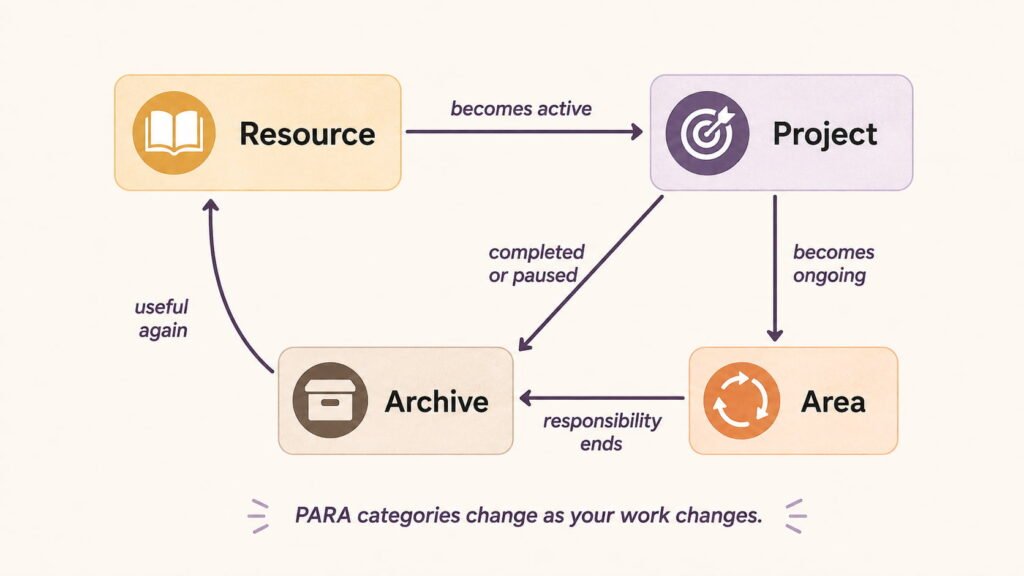
A Resource can become a Project
Suppose you maintain a Resource called Pricing Research.
For months, it contains useful articles and examples.
Then your company decides to redesign pricing. You create a Project called Launch New Pricing Model.
Relevant material can now move or be linked into that Project because it has become immediately actionable.
A Project can become part of an Area
Imagine a Project called Launch Customer Newsletter.
Once the newsletter is operating, publishing it may become an ongoing responsibility.
The launch Project can close. A continuing Area such as Newsletter or Content Marketing can hold the information needed to maintain it.
Completed Projects move to Archives
When a pricing redesign ships, its active Project should not remain beside work that still requires attention.
Move it to Archives. Keep useful decisions, research, and implementation context.
Later, if another pricing Project begins, some archived material may become useful again.
Archived information can become active again
If an archived market study becomes relevant to a new expansion Project, bring it back into an active context. PARA should reflect current commitments rather than preserve yesterday’s structure forever.
How to maintain PARA without overorganizing
PARA does not need constant housekeeping. Maintenance should mostly follow changes in your work.
Review active Projects
Look at Projects periodically and ask:
- Is this still active?
- Is there a clear outcome?
- Has it become an ongoing Area?
- Is it completed or paused?
If a “Project” survives for years without a finish line, it is probably an Area.
Update Areas when responsibilities change
Areas should reflect responsibilities you actually have.
A role change, finished client relationship, new team assignment, or change in personal circumstances can make an Area inactive.
Move it to Archives rather than keeping an obsolete responsibility visible.
Archive when information becomes inactive
You do not need to delete completed work, but you should move it out of the active layer.
This keeps Projects and Areas representative of what matters now.
Use a lightweight review cadence
A weekly review can be useful, especially when work changes quickly, but PARA does not require a universal review schedule.
During a short review, you might archive completed Projects, clarify vague Project names, move reusable information into Resources, update Areas, and clear obvious clutter.
If you are still building the broader system around PARA, Brainfo’s Second Brain Starter Kit covers beginner setup and a lightweight review workflow in more detail.
The important point is that maintenance should remain cheaper than the problem it solves.
Common PARA mistakes
Turning every topic into an Area
Areas represent responsibilities. They are not replacements for every topical folder you already had.
If you create Areas for AI, Writing, Design, Leadership, Marketing, Research, Psychology, Productivity, and every other subject you care about, you have recreated a subject taxonomy under new labels.
Use Resources for interests. Reserve Areas for responsibilities.
Keeping completed Projects active
An active Project list should tell you what is currently moving.
If it contains completed, abandoned, hypothetical, or someday projects, it stops functioning as an active view.
Archive them. Restore them if they become relevant again.
Creating too many nested categories
Complexity can feel like control. It often creates more decisions.
Create hierarchy only when retrieval problems justify it.
Migrating every historical note before starting
Historical completeness is not a prerequisite.
Move active information first. Let future use tell you which old material deserves individual attention.
Treating Resources as a collection goal
Resources can quietly become a hoarding system.
Saving another article does not automatically make your knowledge base more useful. Before keeping something, ask whether you can imagine a realistic future use.
Expecting PARA to manage your whole productivity system
PARA organizes information. It can support Projects, but it does not automatically tell you which task deserves your attention next.
It does not replace calendar management, task prioritization, team project management, or every method for developing ideas.
Systems become harder to maintain when they try to solve every problem at once.
How PARA fits into a Second Brain and your tools
PARA is commonly associated with Tiago Forte’s broader Building a Second Brain approach, but organizing information is only one part of a knowledge workflow.
PARA and CODE solve different jobs
Within Forte’s broader framework, PARA deals primarily with organization, while CODE describes a wider process for capturing, organizing, distilling, and expressing information.
If you are deciding between PARA, CODE, Zettelkasten, and other knowledge-management approaches, Brainfo already has a dedicated article that compares PARA with CODE and Zettelkasten.
Keep the questions separate:
How should I organize information by current actionability? Use PARA.
Which broader knowledge-management approach fits how I think and work? Compare the methods separately.
PARA does not require a specific app
PARA is not a Notion template or an Obsidian plugin.
The four-category structure can be implemented in many digital environments. A useful tool should make it easy to reorganize containers, retrieve active information, archive completed material, and represent secondary relationships without excessive duplication.
If you are evaluating software rather than the framework itself, Brainfo maintains a separate page to compare knowledge-management platforms.
Implementing PARA in Brainfo
A simple PARA setup in Brainfo can start with four top-level folders:
- Projects
- Areas
- Resources
- Archives
From there, place notes, documents, and bookmarks according to their current role, not merely their subject.
For example, research supporting an active onboarding redesign can sit with that Project. Once the Project finishes, reusable research can move to Resources while completed Project material moves to Archives.
Tags can add a secondary classification when information has a cross-cutting relationship that does not justify another folder. Brainfo’s current Features page documents folders and tags across its core content types, while the AI page identifies the Organizer specialist with folders and tags. That means the organizational layer can support PARA without changing its underlying logic.
Core content such as notes, documents, bookmarks, and tags is local-first and remains available offline. AI chat, web search, and file upload require an internet connection.
The useful part is not a special “PARA feature.” Brainfo provides content types and organizational primitives that can support the method.
Is the PARA method right for you?
PARA is a strong fit when the main problem is that useful information feels disconnected from current work.
It tends to make sense when:
- you work through identifiable Projects
- your current folders are dominated by broad subjects
- you want a low-complexity organizational structure
- your responsibilities change over time
- information lives across several tools
- you want old material available without keeping it active
It may be insufficient by itself if your main problem is task scheduling, complex team project management, or developing dense networks of connected ideas.
You also do not have to reorganize your entire digital life to test it.
Start with one active Project. Create the four top-level categories, then place the information required for that Project where you can actually use it.
When the Project finishes, move it.
That small cycle will tell you more about whether PARA fits your work than spending a weekend designing the perfect folder system.
Frequently asked questions
What does PARA stand for?
PARA stands for Projects, Areas, Resources, and Archives. Projects are active efforts with defined outcomes, Areas are ongoing responsibilities, Resources contain potentially useful information, and Archives store items from those categories that are no longer active.
What is the difference between a Project and an Area in PARA?
A Project has a finish line. An Area is an ongoing responsibility. “Launch the new website” can be a Project, while “Website management” can be an Area that continues after launch.
Where do tasks go in the PARA method?
PARA does not require a dedicated Tasks category. It primarily organizes information. Tasks can remain in your task manager, calendar, project-management system, or another workflow while relevant notes and supporting material are organized through PARA.
Should I use folders or tags for PARA?
Folders are a simple way to represent the four primary PARA categories. Tags can represent secondary relationships, especially when information relates to more than one subject. Avoid a complicated tag taxonomy unless it solves a real retrieval problem.
Does the PARA method work in Notion, Obsidian, or other apps?
Yes. PARA is tool-agnostic and can be implemented in different note-taking, file-management, and knowledge-work environments. Forte Labs provides implementation examples for Notion, Obsidian, Apple Notes, Evernote, OneNote, Microsoft Teams, WorkFlowy, and Anytype.