

Your notes can look perfectly organized until you need an old receipt, a clipped article, and the decision you recorded on your phone. Choosing a note app means choosing how that work happens every day.
The practical answer to Evernote vs Joplin depends on your priorities. Shortlist Evernote when its integrated capture, search, tasks, and calendar tools match your routine. Shortlist Joplin when local access, open-source software, and choosing a sync destination matter more. Then test the features you depend on before committing.
This comparison draws on official documentation checked on October 4, 2026. It is a documented comparison, not a hands-on benchmark.
Evernote vs Joplin at a glance
| Decision | Evernote | Joplin |
|---|---|---|
| Service model | Account-based notebook with managed sync | Free, open-source note app with a choice of sync destinations |
| Editing | Rich-text notes | Markdown and Rich Text, with Markdown-related limitations |
| Web capture | Web Clipper for pages, articles, PDFs, and screenshots | Browser clipper connected to a desktop app service |
| Image and PDF retrieval | Search includes handwriting and document content; check file and plan conditions | Local OCR processing on desktop; OCR search on desktop and mobile; no documented handwriting support |
| Offline use | Synced desktop notes are local; prepare mobile offline content | Offline-first notes; attachment availability depends on download settings |
| Sync choices | Evernote’s service | Joplin Cloud or supported alternatives such as Dropbox and Nextcloud |
| Costs to separate | Subscription, device limits, and capacity | Free app, optional hosting, and storage requirements |
The table summarizes the linked Evernote plan information and Joplin documentation. Feature availability deserves a closer check than a yes/no box.
Capture and find information in everyday work
Saving web pages and documents
If you collect research throughout the day, the capture process deserves as much attention as the editor.
Evernote’s Web Clipper saves web pages, articles, PDFs, and screenshots. Its documented options include annotating screenshots and choosing titles, tags, and notebooks. That makes it worth evaluating if collecting web material is central to your work.
Joplin also has a Web Clipper. Its browser extension communicates with a service started by the desktop application. Setting up that connection is part of the workflow, and the official troubleshooting guidance covers service, firewall, and proxy issues.
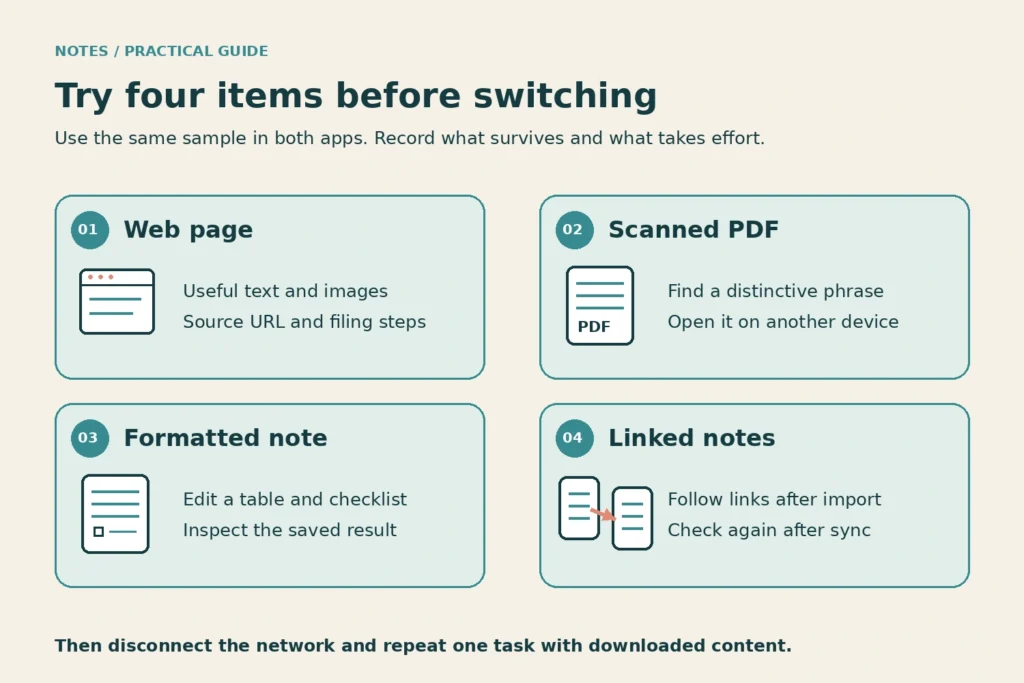
Try clipping the same page in both tools. Look at what survives: the useful text, source link, images, and your own explanation of why you saved it. A feature called “web clipping” can produce very different value depending on your source material.
Finding text in notes, images, and PDFs
Evernote’s search page describes finding content across notes and attached material, including words in handwritten notes and photos of whiteboards. If handwritten material is central to your archive, this documented capability is a reason to test Evernote carefully. Check file and plan conditions rather than assuming every attachment is indexed.
Joplin has built-in OCR. According to its OCR documentation, the desktop app extracts text from PNG and JPEG images and PDFs. Mobile can access the OCR data through sync, and OCR search works on desktop and mobile. Processing happens locally. The documented system does not currently support handwriting recognition.
Use a PDF containing an unusual phrase as a trial item. Also try a clear receipt and a handwritten page if those belong in your archive. Compare what you can actually retrieve, rather than assuming every OCR feature handles the same material.
Writing and organizing your notes
Rich text and Markdown
Joplin does not require you to write Markdown syntax for every note. It also offers a Rich Text editor. However, its editor documentation explains that those notes remain Markdown underneath.
That affects formatting. Tables require headers, some Markdown plugins are incompatible with Rich Text, and HTML formatting in Markdown notes may be lost when edited visually. The trade-off becomes relevant if you frequently move between editors or rely on elaborate formatting.
Evernote is worth testing if your priority is a visual notebook workflow. Put a representative note in each app: headings, a table, a checklist, a link, and an attachment. Edit it on the devices you use. Your ordinary note is a better test than an empty page.
Notebooks, tags, and plugins
Both tools offer notebooks and tags. Joplin’s official overview also documents plugin and theme customization.
Start with the smallest structure that helps you retrieve information. For example, keep one notebook per active project and use a tag for material that applies across projects. Add a plugin only when you can name the task it solves.
Customization is useful when it removes repeated work. It can also create another thing to configure, update, and troubleshoot. Judge your proposed setup after a week of ordinary use, including the moments when you are in a hurry.
Offline access, sync, and data control
Choosing where your notes sync
Joplin is offline-first: its overview says your data is available locally on your phone or computer. Its sync documentation describes a system designed to avoid dependence on a single service.
You can use Joplin Cloud or choose another supported destination. Self-hosting is an option, not a requirement for using Joplin. A managed destination can reduce maintenance while still leaving you with a choice of service.
Evernote manages synchronization through its own service, but it also stores synced notes locally in its Mac and Windows apps. Its offline-access documentation says to remain signed in before disconnecting. On mobile, prepare the notes or notebooks you need for offline use; a cached title is not the same as a downloaded note.
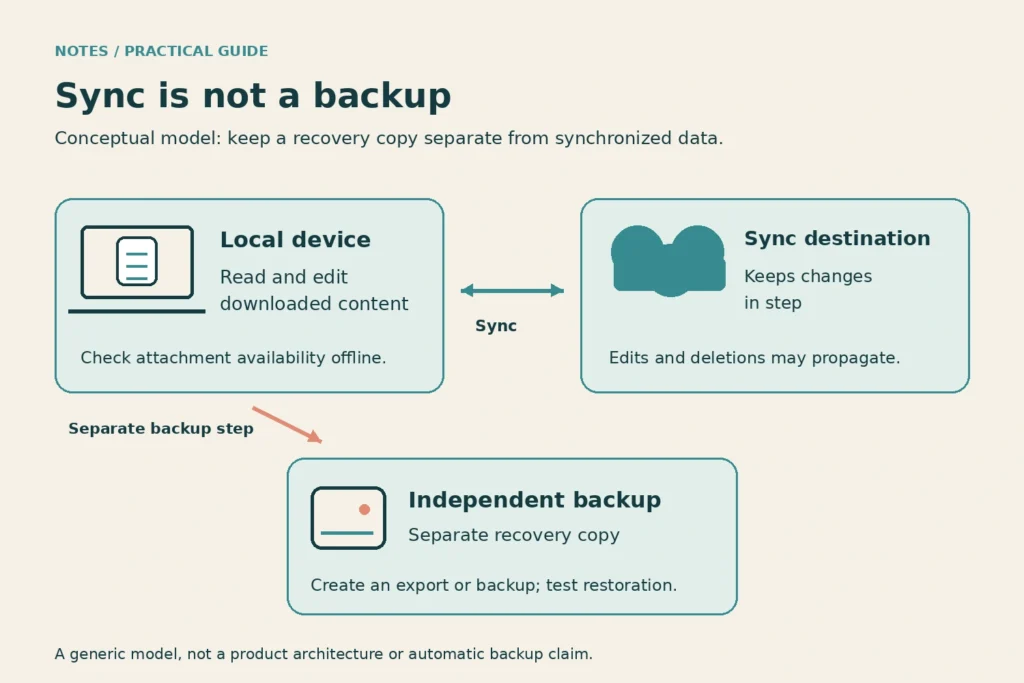
Joplin’s attachment settings also affect offline availability. “Always” downloads attachments during sync, while “Auto” downloads them when a note is opened and “Manual” requires opening the attachment. Test a file with the network disconnected before relying on it while traveling.
Keep backup separate from sync. A synced deletion can remove something from more than one device. Maintain an independent recovery copy and check that you know how to restore it.
What encryption protects
Joplin supports end-to-end encryption, but its setup instructions require enabling it on one device first, then syncing the key to the others. The password cannot be recovered if forgotten.
That setup is part of choosing the tool. Give the initial encrypted sync time to complete and confirm that the other devices can decrypt the notes.
Evernote’s text-encryption instructions cover selected text on Mac, Windows, and Web. They explicitly exclude entire notes and notebooks, as well as files and images. This is a narrower protection scope than Joplin’s encrypted-sync model.
Encryption also does not remove the need to protect a device someone can unlock. Consider device security, recovery procedures, and the content you share alongside the encryption feature itself.
Compare the cost of the setup you need
Compare the configurations you would actually use. “Free app” and “paid cloud service” describe different parts of a system.
Joplin’s app is free. Joplin Cloud is optional and paid. On the official plans page, Basic is listed at €2.99 per month on monthly billing, with 2 GB of storage and a 10 MB limit per note or attachment. Pro is listed at €5.99 per month, with 30 GB and a 200 MB limit. These are the displayed monthly prices checked on October 4, 2026; verify the checkout total and billing terms before buying.
Evernote’s current comparison page lists Free with 50 notes, one notebook, 1 GB of storage, and one synced device. Starter lists 1,000 notes, 20 notebooks, 5 GB, and three synced devices. Archives exceeding Starter’s 1,000-note allowance need another plan; Advanced is listed with unlimited notes, subject to safeguards. A verified regional paid price was unavailable from the accessed page; check the current offer in your currency before comparing annual costs.
Check practical limits as well as annual cost. Joplin’s attachment documentation currently warns that resources over 10 MB are unsupported on mobile. That warning is separate from Pro’s larger Cloud allowance, so verify current mobile compatibility before choosing a plan for large PDFs. Using a laptop and phone also makes Evernote’s device allowance relevant immediately.
For a self-managed setup, include storage and maintenance time. For a managed service, include the subscription and any limits that require an upgrade.
Sharing and AI: check the exact feature and plan
Ask what you need another person to do: read a published note, edit a shared notebook, or manage a team. These are different requirements.
Evernote’s sharing guide supports restricted invitations with view, edit, or edit-and-invite permissions. It also describes public links that can allow viewing or editing without an Evernote account. Decide which access you intend to grant before sharing a link.
Joplin Cloud’s feature table distinguishes joining a shared notebook from initiating a share. Basic supports collaboration on a notebook shared by someone else; Pro includes sharing your own notebook. Check the recipient’s account requirements before planning a shared workflow.
The same page lists Joplin Cloud AI as a beta capability for summarizing, rewriting, and answering questions about notes from the desktop app. Evernote’s feature comparison lists AI Assistant, Semantic Search, AI Transcribe, and AI Edit. Confirm availability, limits, and data handling for the particular plan you intend to use.
For your trial, choose one task: summarize a meeting note and identify its next action. Check the answer against the original. An attractive summary is useful only if it preserves the facts that matter.
What changes when you move from Evernote to Joplin?
Joplin’s import documentation supports importing Evernote notebooks through ENEX, including notes, tags, attachments, and metadata. Several details still need inspection:
- Complex formatting can change when HTML is converted to Markdown. An HTML import option exists when retaining that formatting matters.
- Evernote recognition data is not retained; Joplin can recreate compatible recognition data with its own OCR.
- Some internal links may not resolve correctly because the ENEX information is incomplete. Joplin attempts to match target notes by title.
Try a small, representative export first. Review the imported result before treating migration as complete. Keep the original export until your checks and recovery plan are finished.
Run a small trial before choosing
Build a trial around material you recognize, so you can spot what changed.
| Trial item | What to check |
|---|---|
| Saved web page | Useful text, images, source URL, and filing steps |
| Scanned PDF | Search for a distinctive phrase; open it on another device |
| Formatted note | Edit a table and checklist; inspect the saved result |
| Two linked notes | Follow the link after import and after synchronization |
Repeat one task with the network disconnected. Record any setup, waiting, or manual repair required. Decide which issues are occasional and which would affect you every day.
When Brainfo belongs on your shortlist
Your requirements may extend beyond this pair. If you want to work with notes, documents, and saved sources in one workspace, Brainfo’s notes, documents, and bookmarks are worth considering.
For example, you could keep meeting notes, a working document, and research bookmarks in the same project space, organized with folders and tags. Notes, documents, bookmarks, and tags remain available offline. AI chat, web search, and file upload require an internet connection. This lets you distinguish the material you can keep working with offline from the assistance that needs connectivity.
Brainfo’s relevance here is the broader workspace requirement. Evaluate Joplin’s open-source model and encrypted-sync options on their own terms. For a closer look at the workspace choice, read the Brainfo vs Evernote comparison.
Which app fits your priorities?
Choose Evernote if its capture, retrieval, and integrated planning features handle enough of your routine to justify the plan you need.
Choose Joplin if open-source software, local access, and choosing a sync destination are priorities, and you are comfortable configuring and maintaining that setup.
If neither passes your trial, explore broader Evernote alternatives. Keep your decision tied to the work: capture a source, retrieve an attachment, edit a note, and recover your data. Test a small, representative set before moving your full archive.
Frequently asked questions
Is Joplin completely free?
The Joplin app is free and open source. Joplin Cloud is an optional paid service. Another sync destination may have its own costs, so separate the app price from storage or hosting expenses.
Can Joplin replace Evernote for everyday notes?
It can be a suitable replacement when its editing, clipping, search, and sync options meet your needs. Test representative notes first, especially if you rely on complex formatting, handwriting search, or shared workflows.
Does Joplin search text in images and PDFs?
Yes. Its OCR extracts text from supported images and PDFs on desktop. The resulting OCR data can sync to mobile, where OCR search is also available. The documented system does not currently recognize handwriting.
How does Joplin’s encryption work?
Joplin supports end-to-end encryption for synchronized content. Enable it on one device, complete synchronization, then supply the password on the other devices. Keep that password safe: the documented setup says it cannot be recovered.
What can change when importing Evernote notes into Joplin?
Complex formatting and some internal links can change. Evernote’s recognition data is not preserved, although Joplin can recreate OCR data. Inspect a sample ENEX import before moving the full archive.