

Your meeting note in Capacities might connect to a person, a project, and an image. Moving the text is one part of the job. Keeping enough context to understand the decision next month is the harder part.
If you are researching how to move from Capacities to Brainfo, start with an export, plan where each kind of content belongs, and test a small batch before transferring your library. Compare the result with the original, then expand gradually.
Capacities documents portable exports. Brainfo lists Markdown import. A successful end-to-end transfer between them has not been verified for this guide, so the import steps and preservation claims marked [VERIFY] require a product test before publication.
What can move, and what needs a separate plan?
Content available in a Capacities export
According to the Capacities export documentation, properties become front matter, collections are stored as CSV, media goes into separate folders, and internal connections become local links. Individual objects can also be exported as Markdown.
That gives you material to inspect outside Capacities. Whether the destination understands each component is a separate question. A CSV may retain collection data without recreating a collection, while a local link may need a new destination.
Structure that needs testing or rebuilding
Capacities organizes content around typed objects and their relationships. Its explanation of object-based organization describes types such as Person, Project, and Meeting.
For this migration, plan around Brainfo documents, notes, bookmarks, folders, and tags. Treat automatic conversion of object types, properties, collection membership, queries, and views as unverified.
Brainfo’s Features page lists Markdown import and ZIP imports for Obsidian and Notion exports. It does not establish Capacities archive compatibility.
If you are still deciding which destination fits, compare Brainfo with other knowledge tools before investing in a migration.
Step 1: Inventory your Capacities content
Prioritize active work and preserve an archive
Choose one active project you understand well. List the content you need to complete its next task: meeting notes, people, decisions, research links, and attachments. Keep older material in your inventory, but do not make every historical item part of the first transfer.
Record a source title, type, collection, important properties, and related items for each selected object. Include anything whose absence would make the note misleading, such as the date of an interview or the source behind a recommendation.
A hypothetical launch project makes a useful starting point. It could contain a Project object, a Person object, a Meeting, a saved research link, and a screenshot.
Keep an untouched export as your archive and prepare a separate working copy. Record what you selected, so later you can distinguish something intentionally left behind from something that failed to transfer.
Step 2: Export your content and download its media
Create a full export
Capacities documents manual full export under Settings > Full Export > Manual Full Export. For an individual object, open its three-dot menu and choose Export.
Before exporting media, ensure it is downloaded locally. Capacities directs users to Settings > Offline & Sync > Media Download Settings and the Everything option when media is missing from the device. See its export instructions.
Let the download finish, then create the archive. Record the date and export options alongside the copy you keep unchanged. Avoid renaming files in the working copy until you understand how their links are written.
Check the files before importing
Open several exported Markdown files in a text editor. Look for recognizable titles, complete paragraphs, properties, and references to images or other notes. Open a sample image directly and inspect a collection CSV.
Use your inventory to reconcile the selected objects with the export. Do not compare the object total with the total number of files: attachments and CSVs can make those figures different.
If an image is already absent from the export, investigate the export first. Repeatedly importing the same incomplete source will not restore it.
Step 3: Map your content to Brainfo
Choose homes for objects, collections, and properties
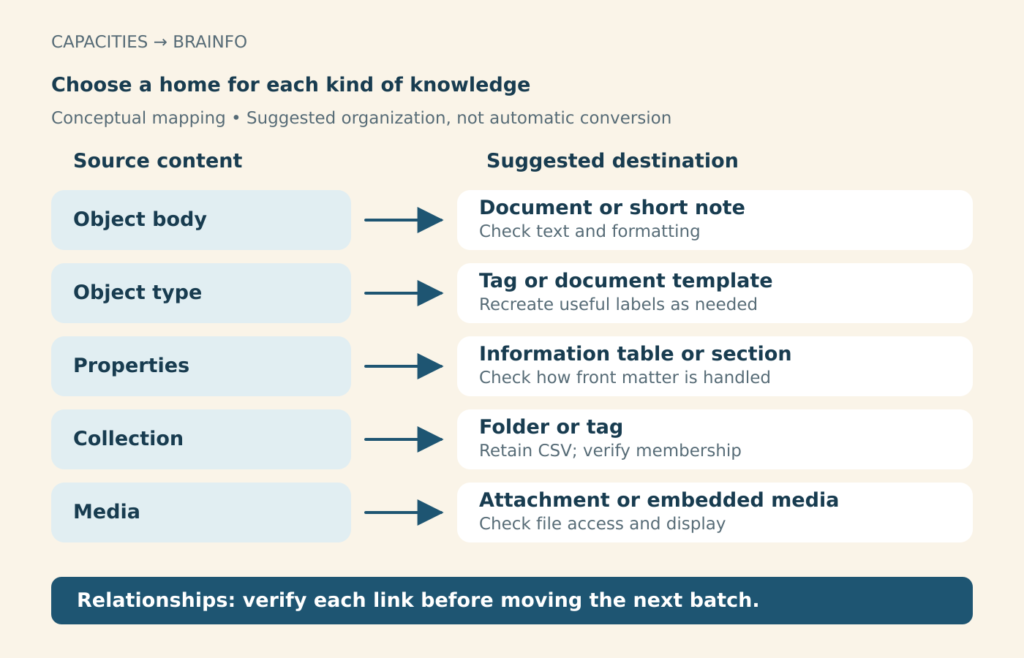
Use a destination structure that supports how you retrieve and use information. The following table is an editorial mapping proposal, not a claim about automatic import behavior.
| Capacities element | Suggested destination or treatment | Check before expanding |
|---|---|---|
| Object body | Document; a short note if appropriate | Content and formatting |
| Object type | Tag or consistent document template | Manual recreation needed |
| Properties | Information table or section in the document | Front matter handling |
| Collection | Folder or tag, with CSV retained as a reference | Membership and overlap |
| Weblink | Bookmark with its original URL and context | Whether recreation is needed |
| Internal connection | Link between destination items | Target opens correctly |
| Image or other media | Supported attachment or embedded media | File access and display |
| Daily note | Dated document in a chosen folder | Date and ordering |
Do not turn every collection into a folder automatically. If an item belongs to several collections, tags may express that overlap more clearly. If a property matters for a decision, preserve its value explicitly rather than hoping the importer turns it into a usable field.
For a project-based approach, organize your content with PARA. Keep the first structure small enough to revise after the pilot.
Keep relationships understandable
In the launch example, the Meeting document should identify the project and participants even if a transferred link fails. A short context section can preserve those references while you repair navigation.
Record the original title and the destination item in your migration log. Use that record when reconnecting notes.
Step 4: Test a representative import
Build a small sample with different content types
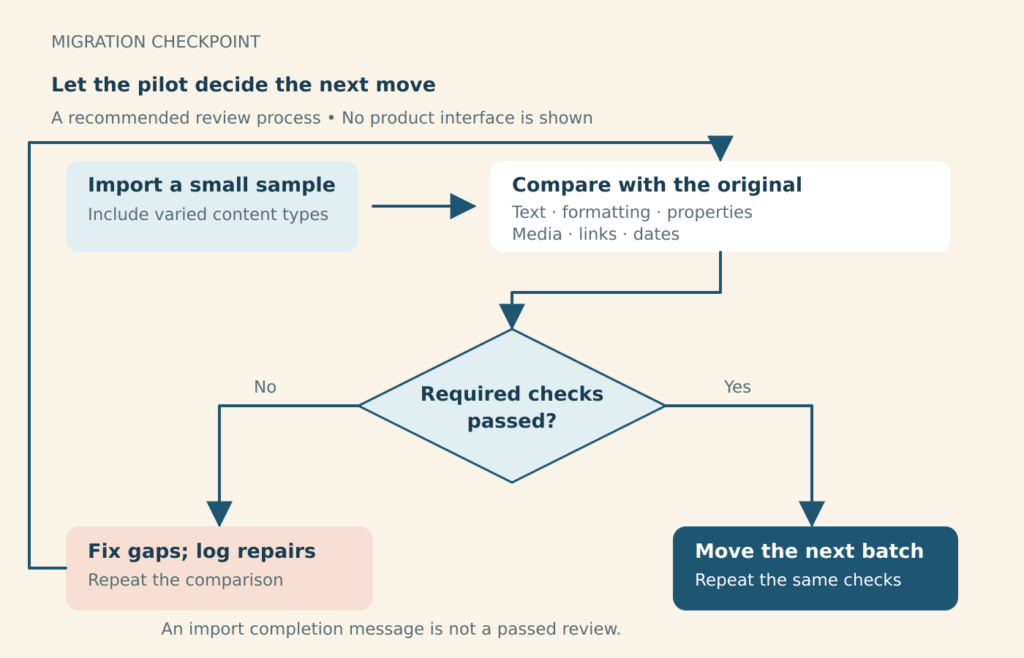
Select a small set that includes plain text, a formatted note, an object with properties, a connected pair of objects, an image, a saved URL, and a daily note. Include a collection CSV if collection data matters to your workflow.
In Brainfo, identify the current import control and test the documented Markdown route with the working copy. Importing content into the editor and uploading a file for AI research are different operations; a file available to chat is not evidence that it became an editable document.
Do not assume a Capacities ZIP is accepted because Brainfo supports ZIP exports from other products. Test that archive route separately if it is available. If it is unsupported, document the alternative that actually works, whether individual imports, another supported batch route, or manual reconstruction.
For a few critical items, copying text into a new document may be a practical fallback. Compare that document with the original and add media and relationships separately. This requires item-by-item reconstruction; it does not recreate a Capacities collection or query.
Record what imports and what needs manual work
Use a log with source item, proposed destination, check, and observed result and repair columns. Record the actual destination in the result column once it exists.
Here is a suggested log for the hypothetical launch-project sample. The result cells are deliberately unfilled because this is a test template, not an observed migration result.
| Source item | Proposed destination | Check | Observed result and repair |
|---|---|---|---|
| Launch meeting | Document | Date, participant references, decision text | Record after testing |
| Interview image | Supported media | File opens in its original context | Record after testing |
| Project collection | Folder or tag | Selected membership matches the inventory | Record after testing |
For each item, record whether the text is complete, formatting remains readable, important properties are visible, and references lead somewhere useful. Mark an item as passed only after checking it.
Step 5: Verify the result and fix gaps
Check content, formatting, media, and links
Work from a checklist against the source:
- Every selected object has an identified destination or a documented reason for exclusion.
- Important paragraphs, headings, lists, and tables remain understandable.
- Images open and retain the context needed to interpret them.
- Required properties remain readable, even if preserved manually.
- Internal links open the intended item; external links retain their original URLs.
- Dates and names still identify the right event, person, or project.
For a small pilot, review every item. For larger batches, reconcile the full inventory and check all material essential to current work, then inspect additional examples of each content type. Increase scrutiny when an issue appears repeatedly.
Resolve missing content and duplicates
Trace missing text or media back through the source object, exported file, and destination. This tells you where the gap began. Repair a missing image from the original file, and check it in the document where it belongs.
If links break, compare their exported paths with the actual destination records. Avoid bulk-renaming files as a first fix: it may make other references harder to reconcile.
Before retrying an import, check whether the earlier attempt created partial content. Use that result to define the retry procedure. Keep completed repairs in the log so the next batch benefits from them.
Step 6: Move in batches and establish your workflow
How to move from Capacities to Brainfo in batches
Once the pilot passes, transfer the next coherent group of content. A project with its supporting notes is easier to assess than a random selection of unrelated objects.
Try an ordinary task with the migrated material. Open the latest meeting note, find its supporting research, and write the next project update. Notice where missing context forces you back into Capacities. Those interruptions reveal migration gaps that a visual scan can miss.
How Brainfo fits the migrated project
For the launch example, keep the meeting record as a document, capture new observations in notes, and save external sources as bookmarks. Use a project folder for the main work and tags for themes that cross projects. This is a suggested setup, not a claim that Capacities types convert automatically.
Once the content has passed your checks, you can work with selected notes in Brainfo to compare interview evidence or draft a project update. Keep the relevant material in the current space and select the context needed for the question. The Brainfo AI page describes analysis of selected resources; do not assume one conversation searches every space.
Core notes, documents, bookmarks, and tags remain available offline under Brainfo’s local-first model. AI chat, web research, and file uploads require an internet connection. Reading an attachment for research does not establish that its formatting, properties, or links survived migration. Verify important AI outputs against the original sources.
Keep the original archive until checks pass
Choose which app holds new edits during each phase. Editing the same material in both creates another reconciliation task. Record a cutover date for each completed project and any remaining exceptions.
Keep the original export and your migration log accessible. If a workflow relies on a Capacities query or view that you have not replaced, record that dependency and resolve it before retiring the source workspace.
Start with one active project. Test the transfer in Brainfo, check the result against your original content, and expand only when the workflow works.
Frequently asked questions
Can Brainfo directly import a Capacities export?
Brainfo lists Markdown import, but that does not confirm support for a complete Capacities archive.
Will my object types and properties transfer?
Capacities exports properties as front matter. How Brainfo interprets them is unverified. Plan to preserve important values in the document and recreate useful type labels manually if needed.
What happens to collections and internal links?
Capacities exports collections as CSV and connections as local links. Test whether Brainfo uses those files and resolves those references. Retain the originals and prepare to rebuild organization or links where needed.
How do I avoid missing images?
Download media locally before exporting, inspect the exported image files, and check their display after import. If a file is missing from the export, resolve that source issue before retrying the transfer.
Should I move my entire library at once?
Start with a representative project. Resolve failures, establish a repeatable method, and move further content in batches. Keep the original archive until the content and workflows you depend on pass your checks.