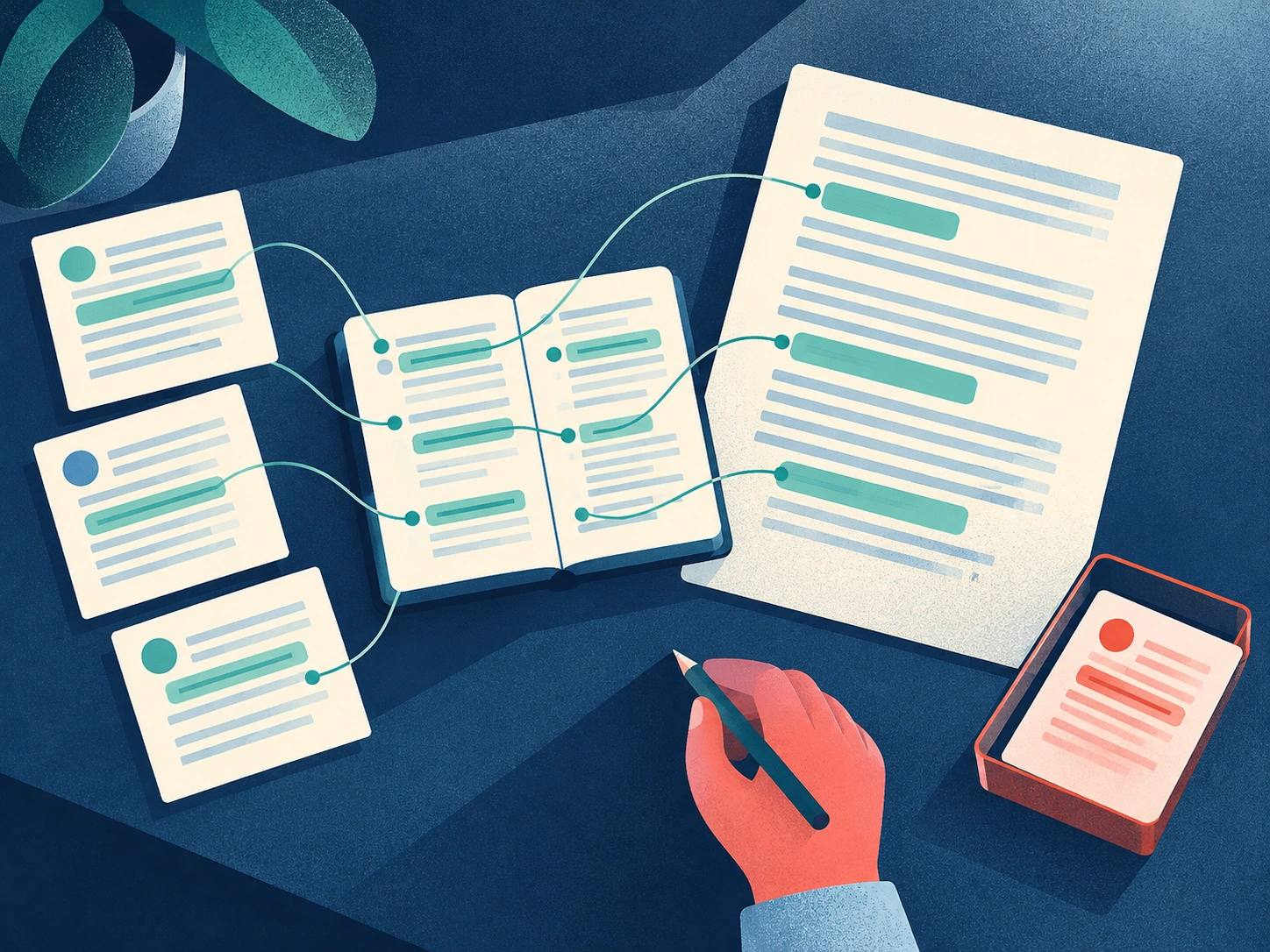

You remember the finding. You have already written the sentence. But the report behind it is somewhere in a downloads folder, and the interview note is in another app.
The best apps for research and writing in one place make that moment easier to handle. Scrivener is a strong fit for a long manuscript, Notion for shared research and documents, Obsidian for local Markdown notes, and Brainfo for research, notes, and AI-assisted writing in an ongoing workspace.
The useful question is whether you can return from a sentence to the evidence that supports it. Start there, then compare collaboration, cost, offline access, and the format you need to deliver.
The best options at a glance
| App | Consider it when | Research-to-writing strength | Main selection constraint |
|---|---|---|---|
| Scrivener | You are building a long manuscript | Background material and draft sections share a project | Check your platform, handoff, and final output requirements |
| Notion | Several people need a shared research hub | Saved pages, source records, and working documents can sit together | Clipping accuracy, permissions, and plan limits need attention |
| Obsidian | You want local files and connected ideas | Source notes and drafts can link within a Markdown vault | Advanced workflows can require setup; shared vaults do not provide live co-editing |
| Brainfo | You want research and AI-assisted writing close to your notes | Notes, documents, bookmarks, and specialist agents share a working space | AI needs internet; members can edit shared content |
These are fit recommendations based on official documentation reviewed on October 6, 2026. They are not results from a hands-on benchmark. This article is published by Brainfo, which is included in the comparison.
How to choose the best apps for research and writing in one place
Keep the original source within reach
A URL points to material that may change. A captured page preserves what the tool saved. A downloaded PDF remains available when the file is on your device.
Check the formats your projects actually contain. A workspace that handles web articles well may be less convenient for interview recordings or large research packs. You should also be able to record a publisher, date, and location within a source when they matter.
Connect research notes to the draft
Separate what the source says from your interpretation. Then connect both to the section where you use the finding.
For example, a source note might record a report’s conclusion and its limitations. Your draft can link to that note while you decide whether the conclusion applies to your audience. That connection is useful even without AI: it makes the reasoning easier to revisit during editing.
Check collaboration, offline access, and export
Start with the last step of the project. Does an editor need a Word document? Will a colleague review in the same workspace? Do you need a bibliography in a particular style?
Locally stored notes, downloaded pages, and online AI assistance have different requirements. Test your source files before assuming an offline draft means an offline research library.
Scrivener for long writing projects
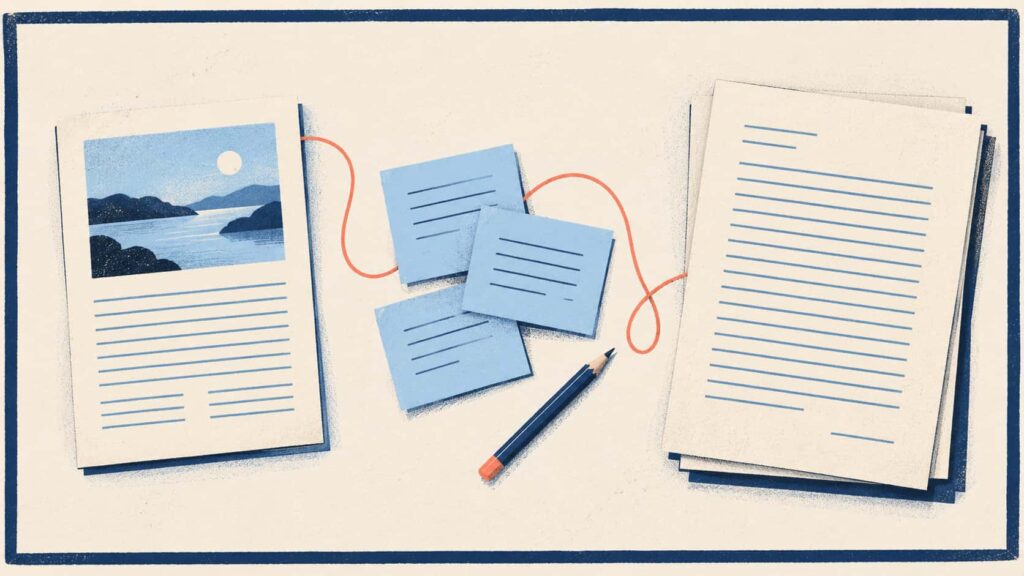
Scrivener is worth considering when a large draft needs structure and supporting material close at hand. Its official overview describes importing documents, PDFs, images, and other research into a project, opening material beside the draft, and compiling work into formats including Word and PDF. See Scrivener’s product overview.
Keep background material beside your manuscript
Suppose you are writing a chapter from an interview and two background reports. You need to consult the material while deciding how to arrange the argument. Scrivener’s project structure and side-by-side viewing support that kind of work.
The practical advantage is proximity. You can keep a chapter and the material informing it within the same project rather than repeatedly reconstructing the context in a browser and file manager. You still need to assess whether the evidence supports your wording.
Check the output and collaboration requirements
Scrivener’s store lists platform-specific licenses and a desktop trial. Check the license for your device instead of assuming one purchase covers every platform.
Before committing, compile a short sample in the format your editor requires. Check headings, footnotes, and references. If several people need to work on the same draft, confirm the handoff process separately; keeping research in one project does not establish that it meets your team’s collaboration needs.
Notion for shared research and documents
Notion is a useful candidate when research has to remain accessible to a group. A project can have a source database, reading notes, and working documents, with permissions appropriate to the people involved. Consult its sharing and permissions documentation before inviting collaborators.
Build a source library around the project
Notion’s Web Clipper saves web pages into a selected page or database. Clipping into a database also adds the original address as a URL property.
A simple source record can hold the original link, a reading status, and your note about where the material belongs in the draft. Keep that structure small. A few consistently used fields make sources easier to find than an elaborate database nobody maintains.
Account for clipping limits and workspace upkeep
Notion says website formatting varies and clipped content can be incomplete. Open the saved page before relying on it as your working copy.
Offline access is available in desktop and mobile apps for downloaded pages, not in the browser. Important subpages need their own downloads, according to Notion’s offline guide.
Cost also depends on the workflow. The current plan comparison lists a free plan with a 5 MB limit per uploaded file and limited collaborative blocks for workspaces with multiple members. Free and Plus AI access is described as a trial. Check the plan your source files and collaborators require before treating the workspace as a free AI research system.
For projects spanning several clients, see the guide to choosing note-taking apps for consultants.
Obsidian for local research notes and drafts
Obsidian suits writers who want notes stored on their own device and ideas connected across projects. Its official site describes local Markdown files, links between notes, and offline access to locally stored content.
Connect sources, ideas, and writing in Markdown
An illustrative setup is a source note for each important document, a separate note for an argument, and a draft that links to both. Keep quotations distinguishable from your own writing and include enough source detail to find the passage again.
The official Web Clipper adds a way to collect material from the web. That makes Obsidian a plausible home for research and drafting, particularly when you expect useful notes to outlive one article.
Markdown also gives the project a readable file foundation. However, having readable text files does not answer every question about publication formatting, bibliography generation, or collaborative review.
Decide how much setup you want to maintain
Obsidian’s core app is free. Its pricing page lists optional Sync and Publish services; Sync starts at US$4 per user per month billed annually, or US$5 billed monthly, at the review date.
Shared vaults should not be confused with simultaneous document editing. Obsidian’s collaboration documentation says it does not support collaborative live editing of the same file.
Choose this approach when local files and connected notes justify maintaining your workflow. If your needs extend beyond a Markdown vault, review the Obsidian alternatives guide.
Brainfo for research, notes, and AI-assisted writing
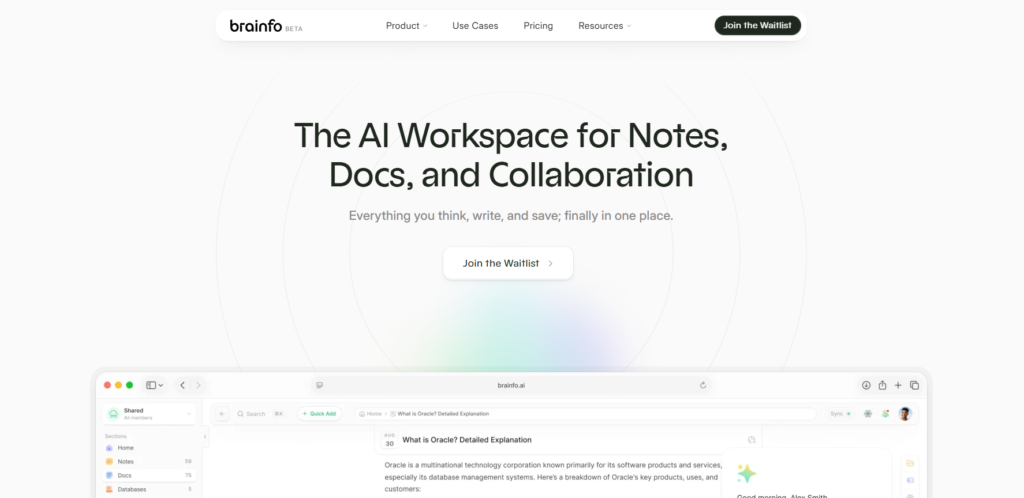
Brainfo is a candidate when a research task needs to continue into notes, documents, and shared work. It combines those content types with bookmarks and specialist agents. Its AI page describes a supervisor delegating to an Organizer for folders and tags, a Writer for documents, notes, and bookmarks, and a Researcher for files and the web.
Use specialist agents within the working space
Consider a proposed workflow: keep sources as bookmarks, record a finding in a note, and develop a document in the same space. AI assistance works within the current space. When online, use selected files or web pages for research, then check the supporting material before adding a claim to the draft.
This keeps research near the content you are shaping. A cited summary can omit a qualification, and file reading happens selectively in manageable batches. If an agent proposes deleting content, Brainfo requires an explicit approval or rejection.
Separate offline content from online AI work
Brainfo’s core notes, documents, bookmarks, and tags remain available offline. AI chat, web research, and file uploads require an internet connection. Its features page describes real-time collaborative editing. Roles are owner, admin, and member; every member can edit, so check whether that fits your review process.
Brainfo lists paid plans. Check the current subscription terms and usage limits before choosing a plan; the page gives inconsistent information about free access at the review date.
Follow one claim from source to draft
Use the same small task when evaluating two candidates. The following is an illustrative exercise, not a report of product testing.
Imagine you are writing a report from two web pages, one PDF, and an interview note. One source suggests a change in customer behavior; the interview provides a possible explanation. Those are different kinds of evidence, and the draft should preserve that distinction.
- Save the source and identify the passage you intend to use.
- Write a note separating the finding, your interpretation, and any limitation.
- Add the proposed claim to the outline, with a link or reference back to the note.
- Draft the paragraph, then check whether its wording overstates the evidence.
- Open the output or shared version and see whether another reader can recover the source.
The revealing step is the last one. A workflow can feel convenient while drafting yet lose the evidence trail during export or handoff. Prefer the tool that preserves the connection your project needs, with an amount of maintenance you will actually sustain.
When one workspace still needs a specialist tool
A writing workspace may keep sources nearby without generating a reliable academic bibliography. Zotero’s word processor integrations support citations and bibliographies in Word, LibreOffice, and Google Docs. That is a distinct job from organizing research notes.
Likewise, a specialist source-analysis tool may suit a bounded collection of documents while your ongoing drafts belong elsewhere. The NotebookLM alternatives for research and notes guide explores that distinction.
Keep a second tool when it solves a requirement the main workspace cannot meet. Define where the final source record and draft belong so the same project does not develop competing versions in several apps.
Choose the workspace around your next project
Start with Scrivener for a long manuscript, Notion for shared research records, Obsidian for local connected notes, or Brainfo for research and AI-assisted writing inside an ongoing knowledge workspace.
Run the source-to-draft exercise in two candidates before moving an archive. Confirm costs, file limits, review, and output. For client work, explore research and knowledge tools for consultants.
Your next draft should make the choice concrete: can you find the evidence, use it carefully, and hand it over without rebuilding the research trail?
Frequently asked questions
What should an all-in-one research and writing app include?
Look for a way to keep sources, research notes, and editable drafts together. Then check source retrieval, collaboration, offline access, and export against your actual project. An AI assistant or a large feature list alone does not establish that the workflow fits.
Which options work offline?
Obsidian supports locally stored notes offline. Brainfo’s core content is available offline, but its AI work needs internet. Notion supports downloaded pages in desktop and mobile apps. For any candidate, check the particular files and pages you need before disconnecting.
Can a writing workspace replace a citation manager?
Only if it meets your citation and bibliography requirements. Saving links and notes is different from inserting formatted citations into a manuscript. For academic work, a reference manager such as Zotero may remain useful alongside the writing workspace.
Are free plans enough for research and writing?
Sometimes. Obsidian’s core app is free, while Notion’s free plan has file and collaboration limits. Decide using your file sizes, collaborators, and required AI features. Check current plan terms rather than assuming that free access includes every part of your workflow.
How should you check AI-generated research before using it?
Open the original source, locate the supporting passage, and check its date and qualifications. Separate the source’s finding from your interpretation. Keep a reference near the draft so an editor can repeat the check; an AI-generated citation is a starting point for verification.